The Work Time feature allows Members to login, perform timeclock operations, and view hours via a calendar view on thier smartphones. This is useful in cases where Members may be working on/off-site without access to a web-based timeclock and/or conventional clock device. Timezone is automatically detected from your device.
Clocking In
- On your Junify App's Home Screen, slide the controller to the right to clock in.
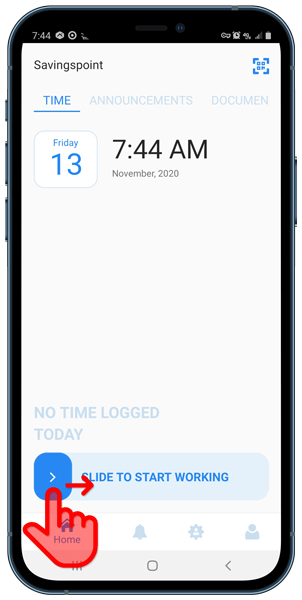 |
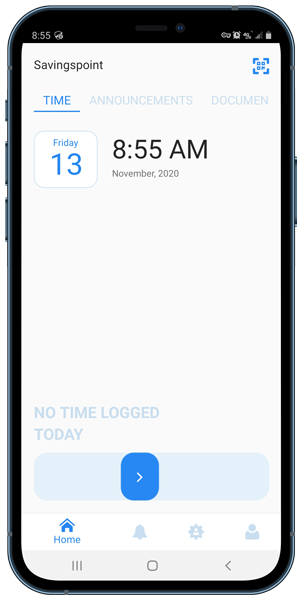 |
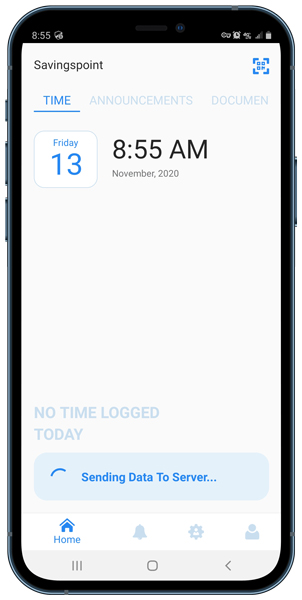 |
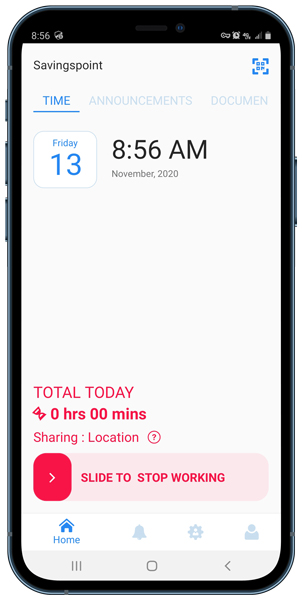 |
|
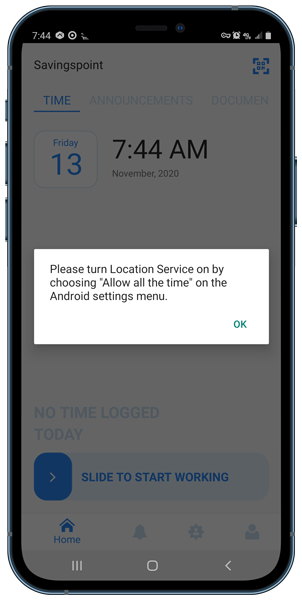
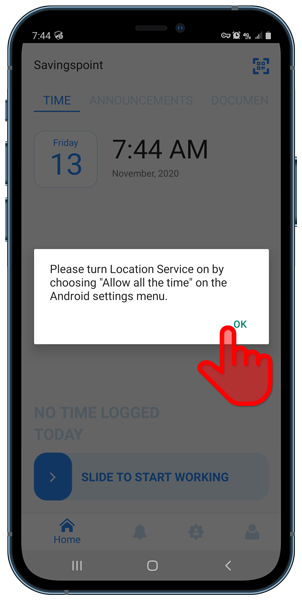
Note: If prompted, activate permissions to locations. Locations allows the timeclock to log time based on your mobile device's timezone.
|
- If enabled, you will be prompted to select a job to log your time to.
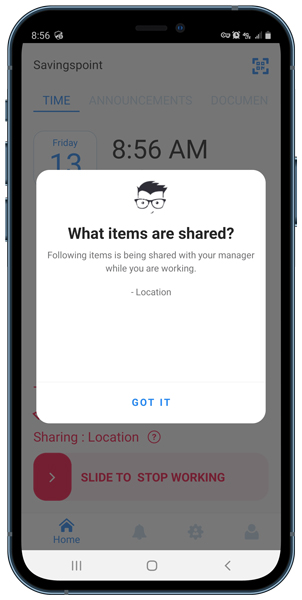
- Your Home screen should now be displaying your accured time.
Clocking Out
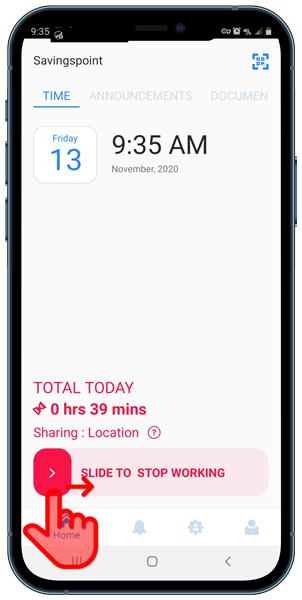
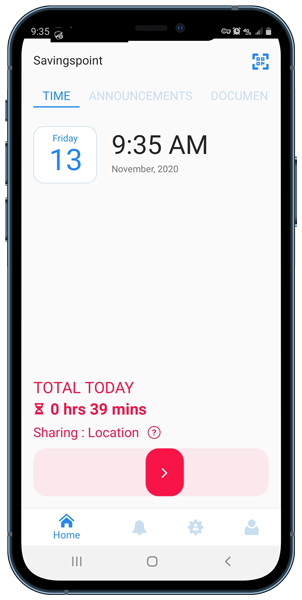
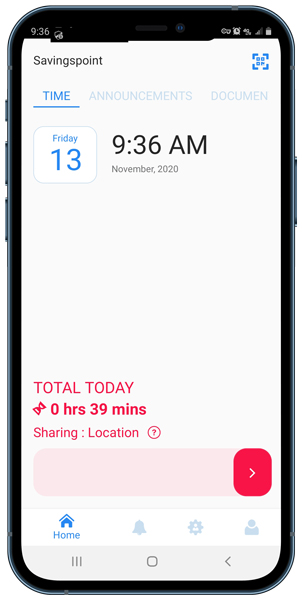
- On your Junify App's Home Screen, slide the controller to the right to clock out.
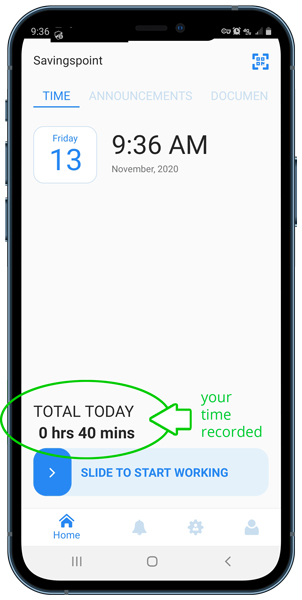
- Your Home screens should now be displaying your accured time for the day.
 |
 |
 |
 |
Viewing/Editing Your Work Time
View Your Work Time
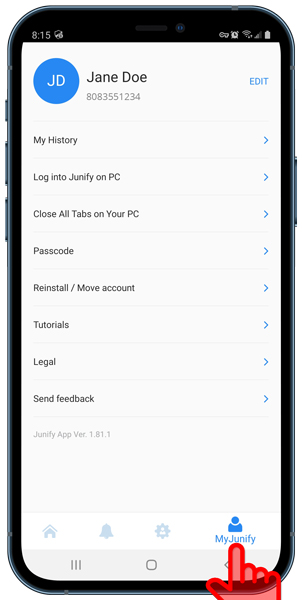
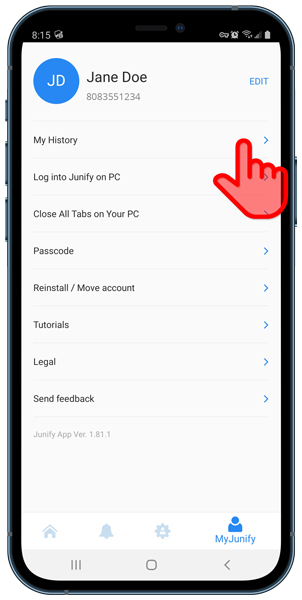
On your Junify App, click on My Junify > My History
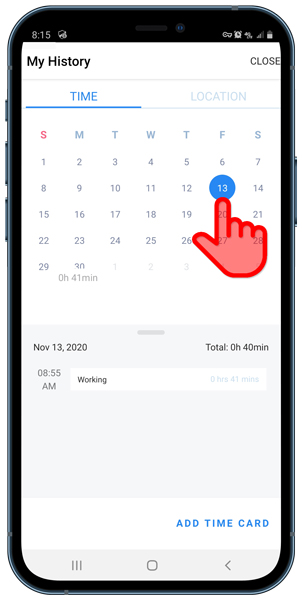
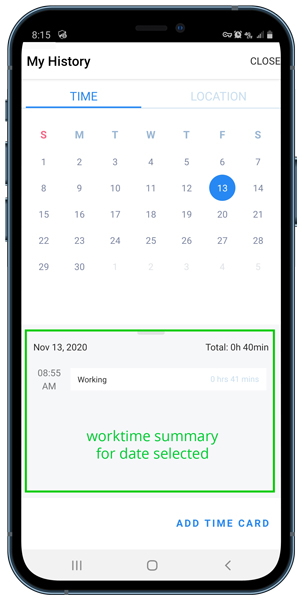
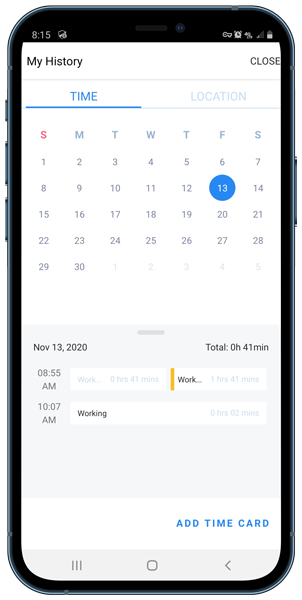
Click the date to see your clock in times and total working time.
 |
 |
 |
 |
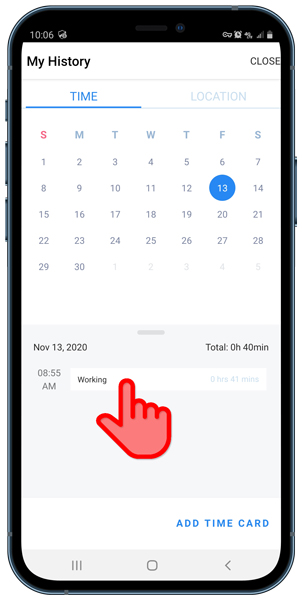
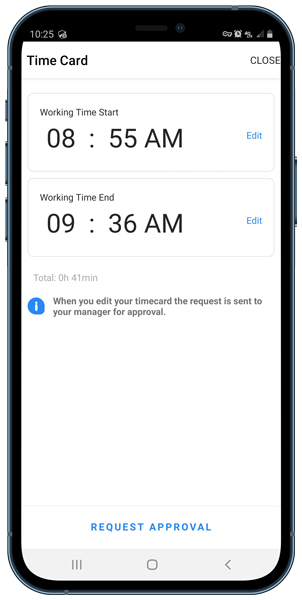
Click on the time entry to view your working time start and working time end in detail.
 |
 |
 |
|
Edit Your Work Time
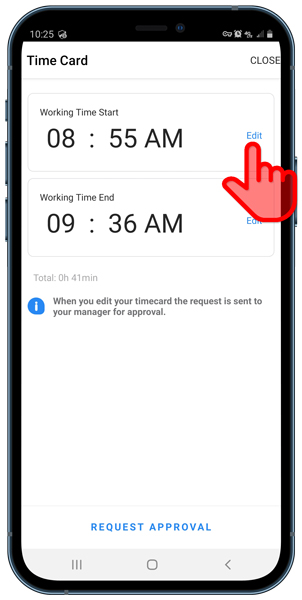
On your Junify App, click on My Junify > My History > Select Date > Select Entry to Edit > Select Edit on the entry you would like to update.
|
|
|
 |
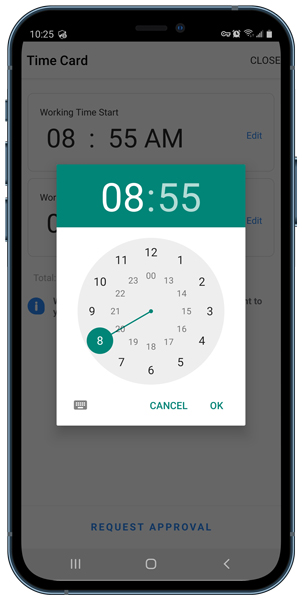
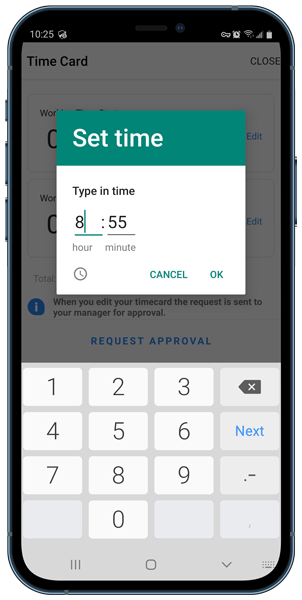
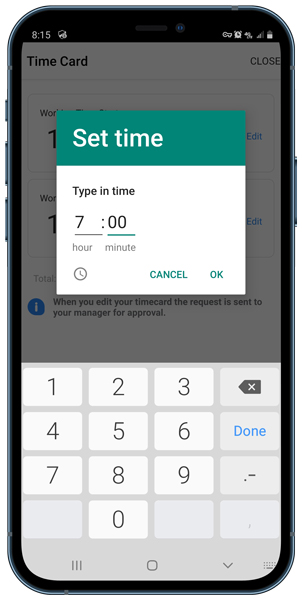
You should now be seeing a time clock face. There are two ways to enter your time:
- Move the hands to a new time
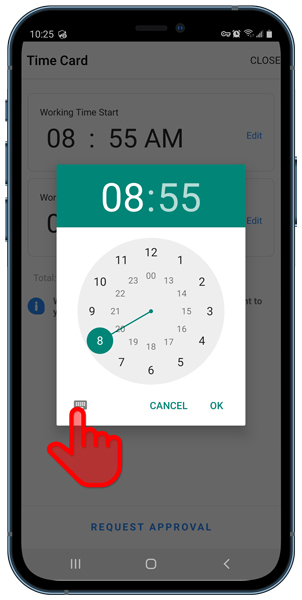
- Click on the keyboard icon to enter your time
Click OK to update your time.
 |
 |
 |
 |
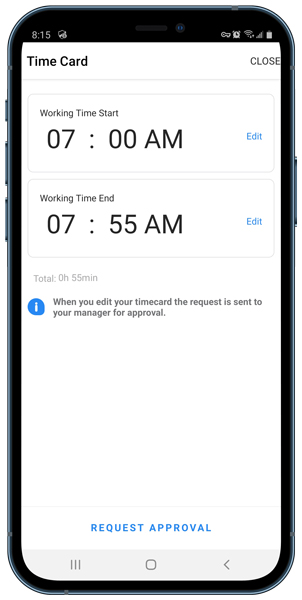
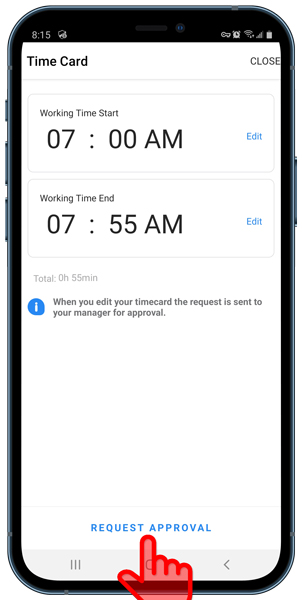
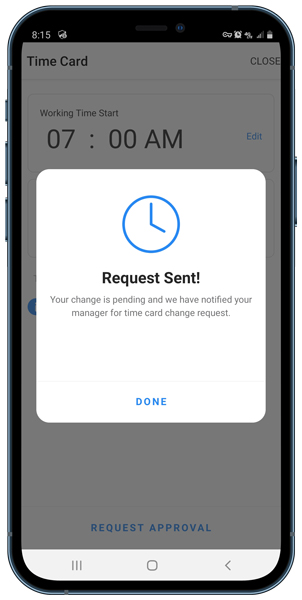
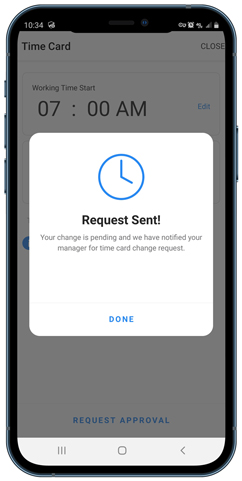
Confirm the displayed time is correct. Click Request Approval to submit your Work Time edit request.
Clicking on OK takes you back to your Work Time history screen. Your edit request displays yellow until your manager approves your request.
 |
 |
 |
 |
Adding a Time Card
At times you may have forgotten to clock in and out. Junify allows you to add Time Cards for those missed times.
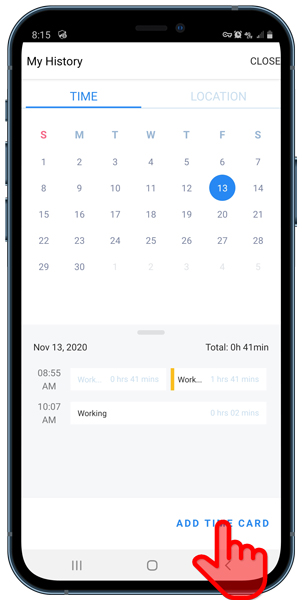
On your Junify App, click on My Junify > My History > Select Date with the Missed Time > Add Time Card
|
|
 |
|
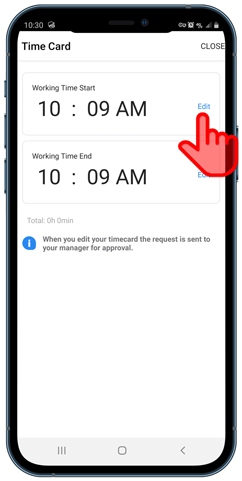
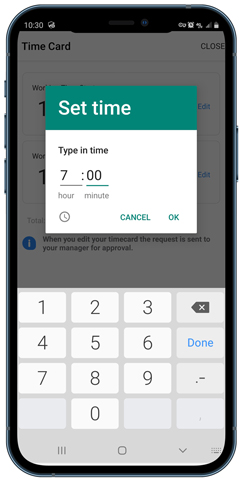
Click Edit on the Working Time Start > Enter your time as you would editing time
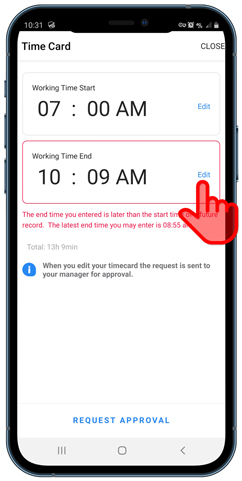
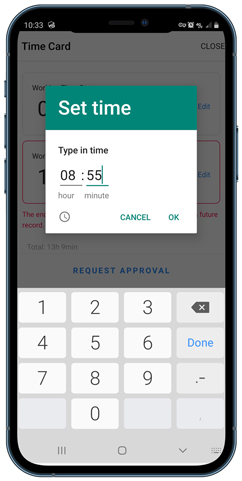
Click Edit on the Working Time End > Enter your time as you would editing time
 |
 |
 |
 |
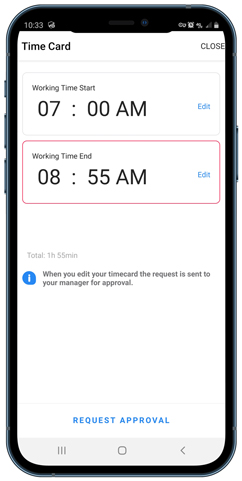
Confirm the displayed time is correct. Click Request Approval to submit your added Time Card.
|
Note: Junify will prompt you should your entry conflict with any logged time. Correct any errors then click Request Approal to submit. |
 |
 |