There are two ways to activate your Junify account and join your team. In this tutorial, we will cover receiving an invitation via e-mail to join your team on Junify.
1. Install the Junify App
Install the Junify app on your smartphone by visiting the App store or Google Play store from the following link.
 |
 |
2. Receive an Invitation E-mail
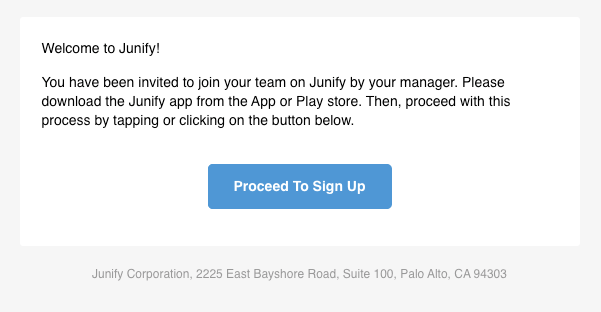
Your organization's Junify administrator will send you an invitation via E-mail. The invitation will look similar to the example below.
2-1 Accessing the E-mail Invitation on Your Smartphone
Tap the "Proceed To Sign Up" button which will launch your Junify app. You will then see the sign up screen.
This sign up method may not work depending on the E-mail client or the type of smartphone you use. If that is the case, please try the same sign up step using a browser on a PC. This process is described in the following section.
2-2 Accessing the E-mail Invitation on Your Computer
Click the "Proceed To Sign Up" button which will open a web page displaying a QR code.
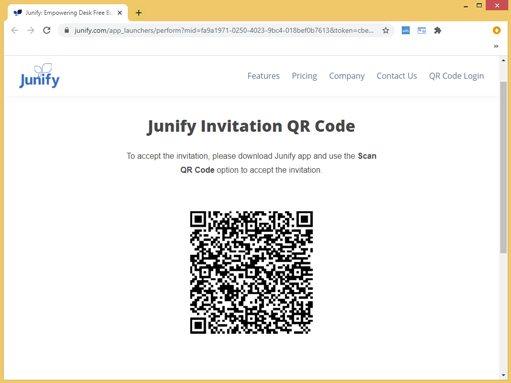
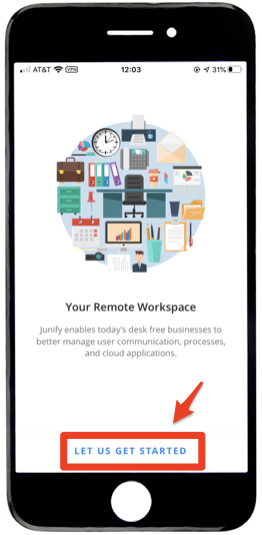
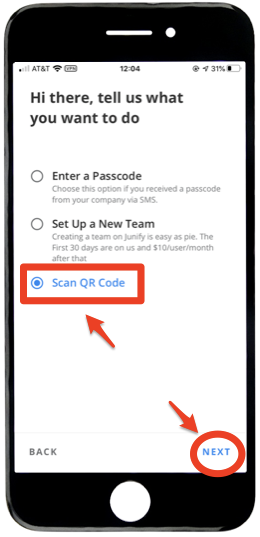
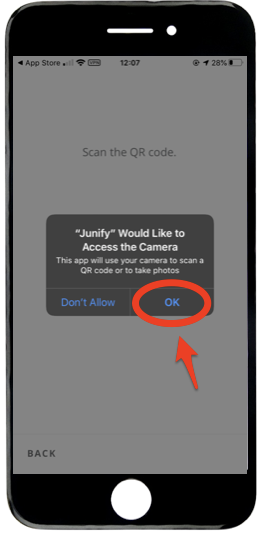
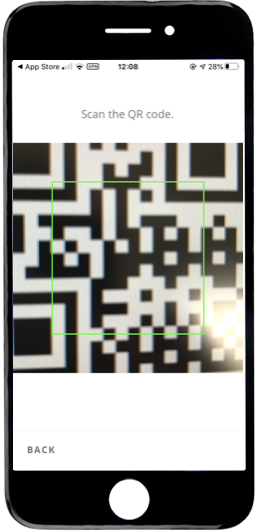
Open the Junify app on your phone and follow the steps shown in the images below. Select "Scan QR code" and allow permission for Junify to access your camera. Shoot the QR code using the camera on your phone, the configuration of the app will be complete.
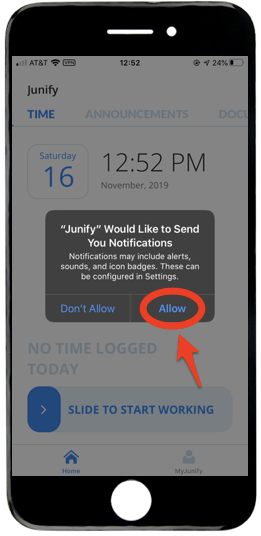
3. Complete Account Activation
Your activation is complete after selecting your notification settings. Enable notifications to receive notifications sent by your company via the Junify app.