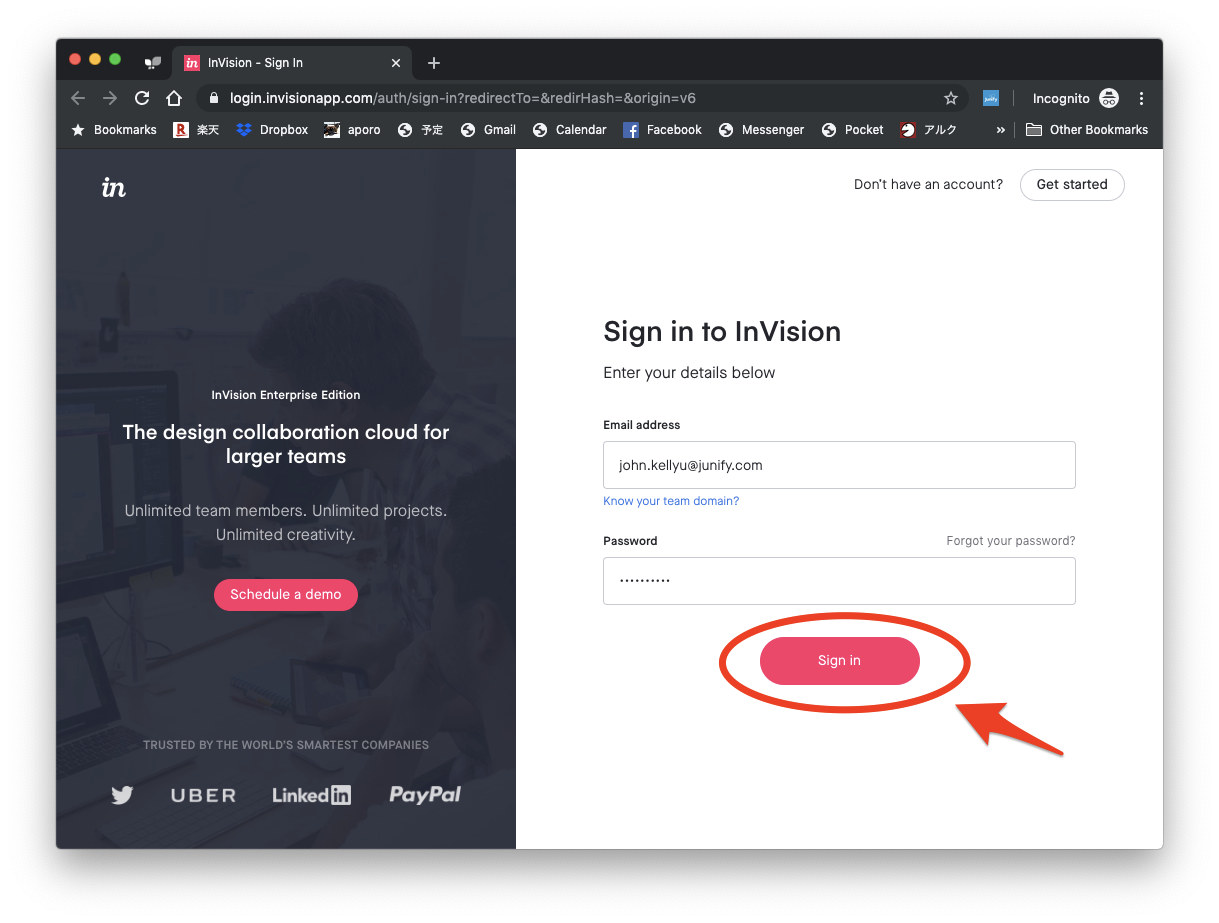
Junify enables users to login to their SaaS applications without needing to enter their username and password. There are two ways to access SaaS applications using Junify.
1. Mobile (on Junify app)
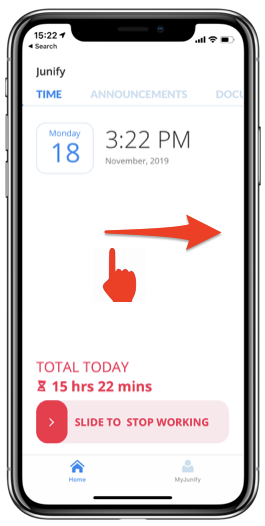
1-1. Open the Junify app and go to the APPS screen by swiping to the APPS section on the top menu.
1-2. List of Apps
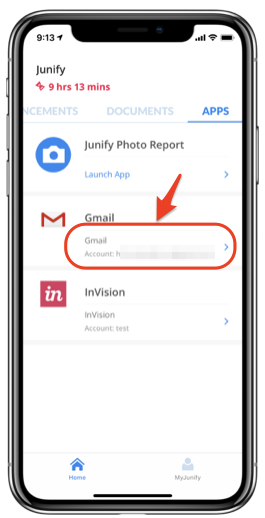
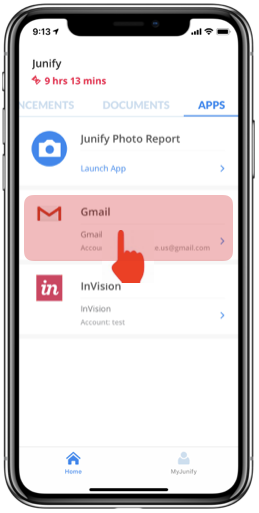
If the login credentials are already entered, such as in the InVision app shown below, you'll see the account (user) name on it. When you see an application configured this way, it means that it's ready to use and you can start launch that app by clicking on that card.
Depending on how your administrator configured a particular app, it may not yet be associated with your (or any) account yet. When you see the "Sign in" link like in the Gmail app card below, you will need to login to the application with your username and password. Subsequent logins will work like the InVision example above.

1-3. Enter your username and password then tap "LOGIN" at the bottom to login to this application.

1-4. If the username and/or password is incorrect you will see an error message as shown below. After a few seconds, the Junify app will ask you whether your login attempt was successful. If it did fail, please tap "No" so that you can re-enter the correct username and password. Only tap "Yes" if the login was successful. When tapping "Yes", Junify will save the username or password, even if incorrect. If you accidentally do this you can change the username or password by clicking the gear icon on the app card.

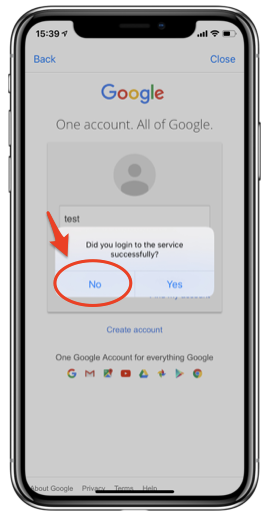
1-5. In the event the login was successful, tap "Yes" to instruct Junify to save your username and password. You will then be taken back to the list of applications. Going forward, you can login to applications without having to enter your username and password.

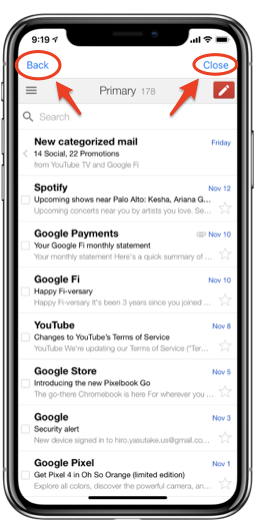
1-6. When using Junify on a mobile phone, the "Back" button in the top left corner is the same as the back button in a browser. The "Close" button on the top right corner closes a given application and takes you back to the application list in Junify.
1-7. Remember to update your username and password in Junify anytime you change your login credentials on an app. If you don't, Junify will be unable to log you into that app because the saved credentials will be incorrect. To change your username and password, please keep touching the application card. You will see a message to edit your account. By tapping "Yes", you can go back to 1-3 above to update your username or password.

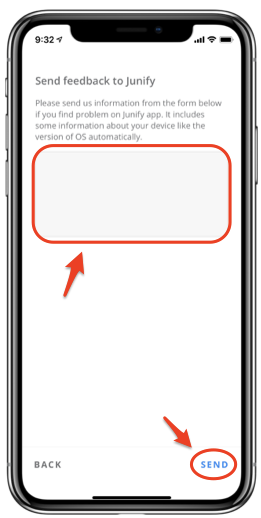
1-8. If you experience problems even after entering the correct username and password, please contact Junify from the "Send feedback" section in My Junify. Occasionally we need to update Junify when app vendors change their login process.

2. PC (using ONLY a Chrome browser)
You can use login to apps (cloud resources such as Gmail, Dropbox, etc.) on your PC using Junify. Please visit the following link for initial configuration settings and processes required before you access Junify on your PC.
https://junify.zendesk.com/hc/en-us/articles/360033912013
2-1. Open and login to Junify on a Chrome browser (article above). Once in Junify, if there is a "Sign in" button then there is no login account associated with this application and you'll need to enter it the first time you try to login. Please start the process by clicking "Sign in".

2-2. Please type your username and password for this application and click the "Verify Credentials" button.

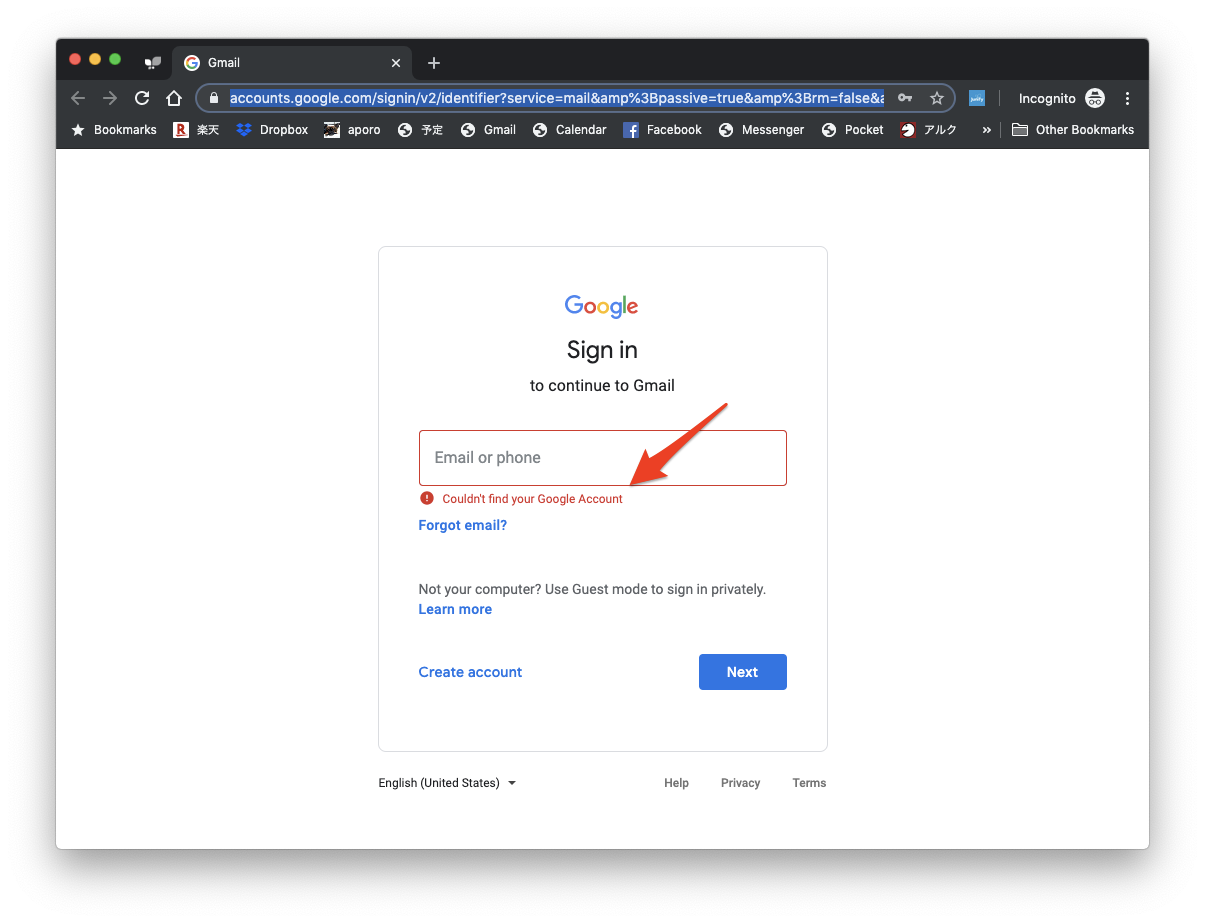
2-3. If the login process fails, you will see an error messages. After a few seconds, Junify will ask you whether your login attempt was successful or not. Please tap "No" as appropriate. If you tap "Yes", Junify will save your incorrect username or password and you'll need to update it by clicking the gear shift in the app card. After tapping "No", you can re-enter your username and password on the same form.


2-4. If Junify was successfully able to log you into your app using the username and password you entered, please click "Yes". Junify will then save your username and password. Junify will then ask whether you would like to stay and start using this application immediately or going back to the list of applications in the form.


2-5. When you launch an application from Junify it will open in a new window in the same browser. The Junify tab will stay open as your first tab. Be aware that this first tab is small so that it leaves more room for the various applications you may want to have open. Click on the Junify tab when you want to return to the Junify application.

2-6. Whenever you see a username on an application card that means a username and password is associated with that app. So long as the saved credentials are correct and current, you can now login to this application without having to enter your username and password.

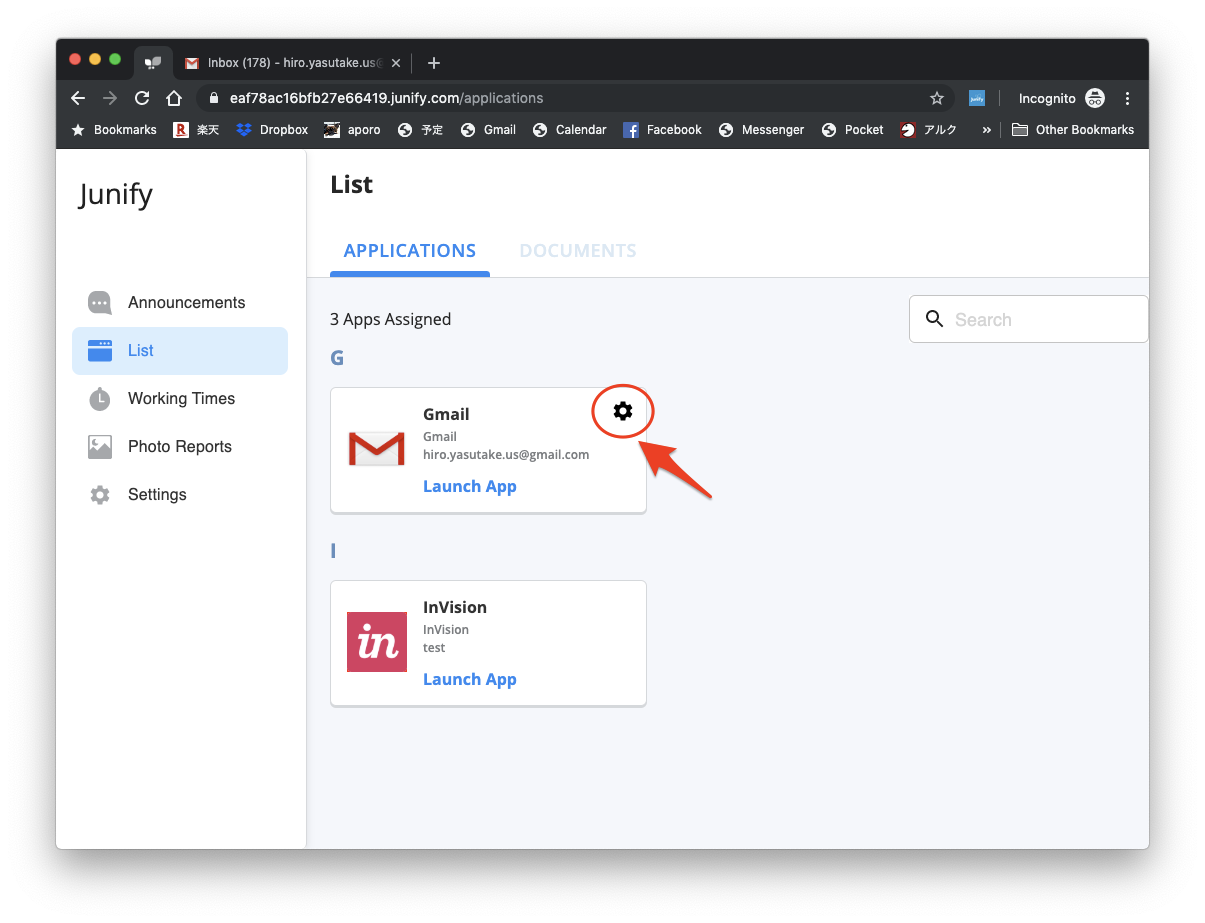
2-7. When using Junify, you might be unable to login even though you previously and successfully registered your username and password. This most often occurs because either your username and/or password was changed or because the host application has changed their login process. To update your username and password in Junify you can go back to 2-2 above by clicking the gear icon on the top right corner of an application card.
2-8. When the host application changes their login process Junify may need your help to know where to enter the username and password. To do so, please use the Junify login wizard that will appear in the bottom right of the screen. It usually appears after about 10 seconds seconds. The wizard will ask you to identify the username and password fields on the screen. If your username or password is already filled, please just click the login button.

If your username or password are not filled in by Junify, please click the username or password field on the form. You will then see the field outlined with blue dots. Then click on the username or password link on the Junify login wizard to instruct Junify what field you just highlighted.

The example below shows how this process maps the "USERNAME" field to Junify.
Confirm your username and password in the wizard as appropriate.

Once complete, you can close the small window in the bottom right by clicking the "x". 
You can now login to the application clicking the login button.