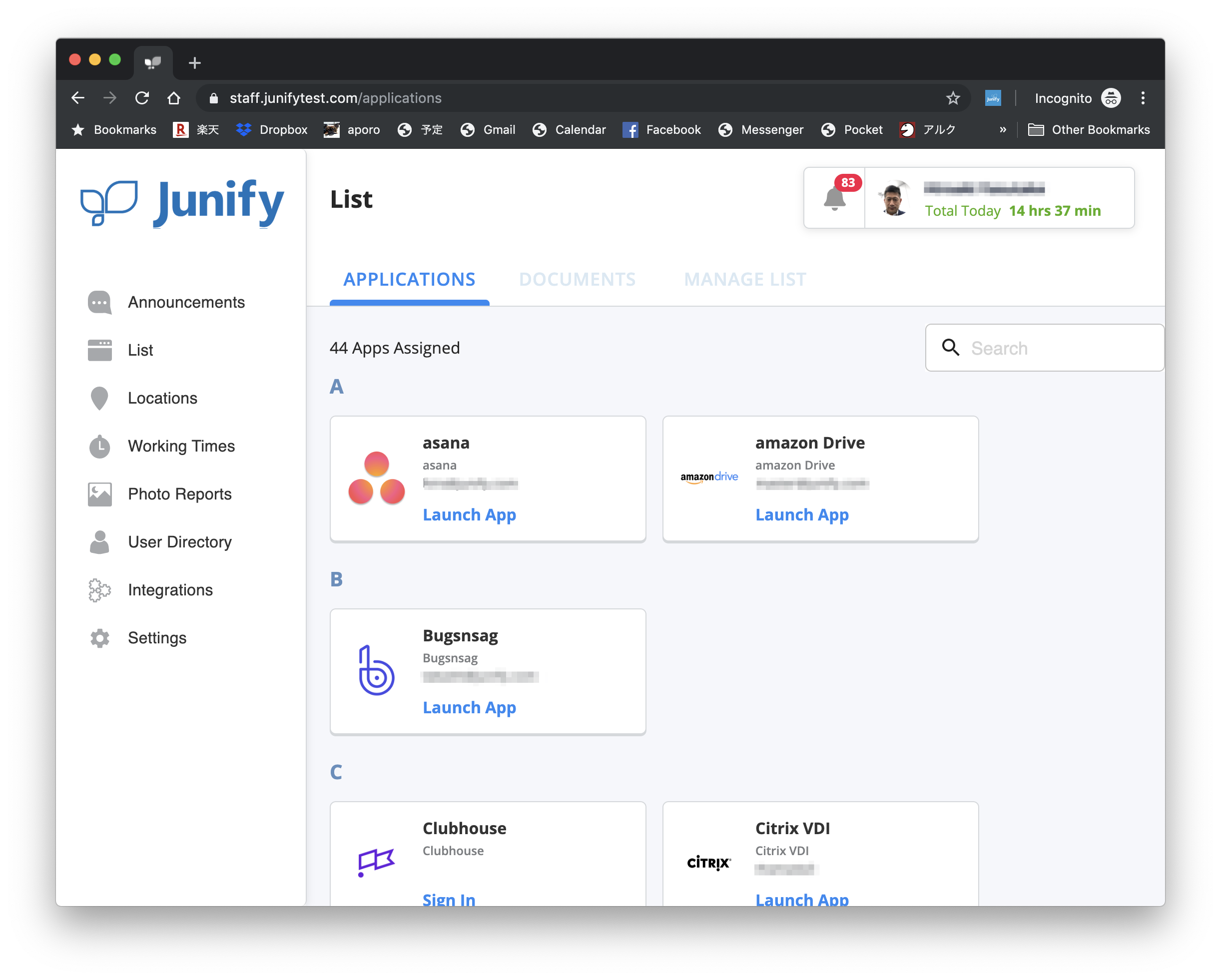
To login and access Junify on a PC, you will need to have a Junify app which is associated with your account on your smartphone and a Chrome browser. Please watch the video below for step by step process or follow the instructions below.
Please copy and paste the url below in a web browser if the above video doesn't work.
https://youtu.be/lH6dsgdt00g
* Firefox is not supported.
1. How to set up - Install Junify Chrome extension
1-1. Access "https://www.junify.com/" and click "QR Code Login".

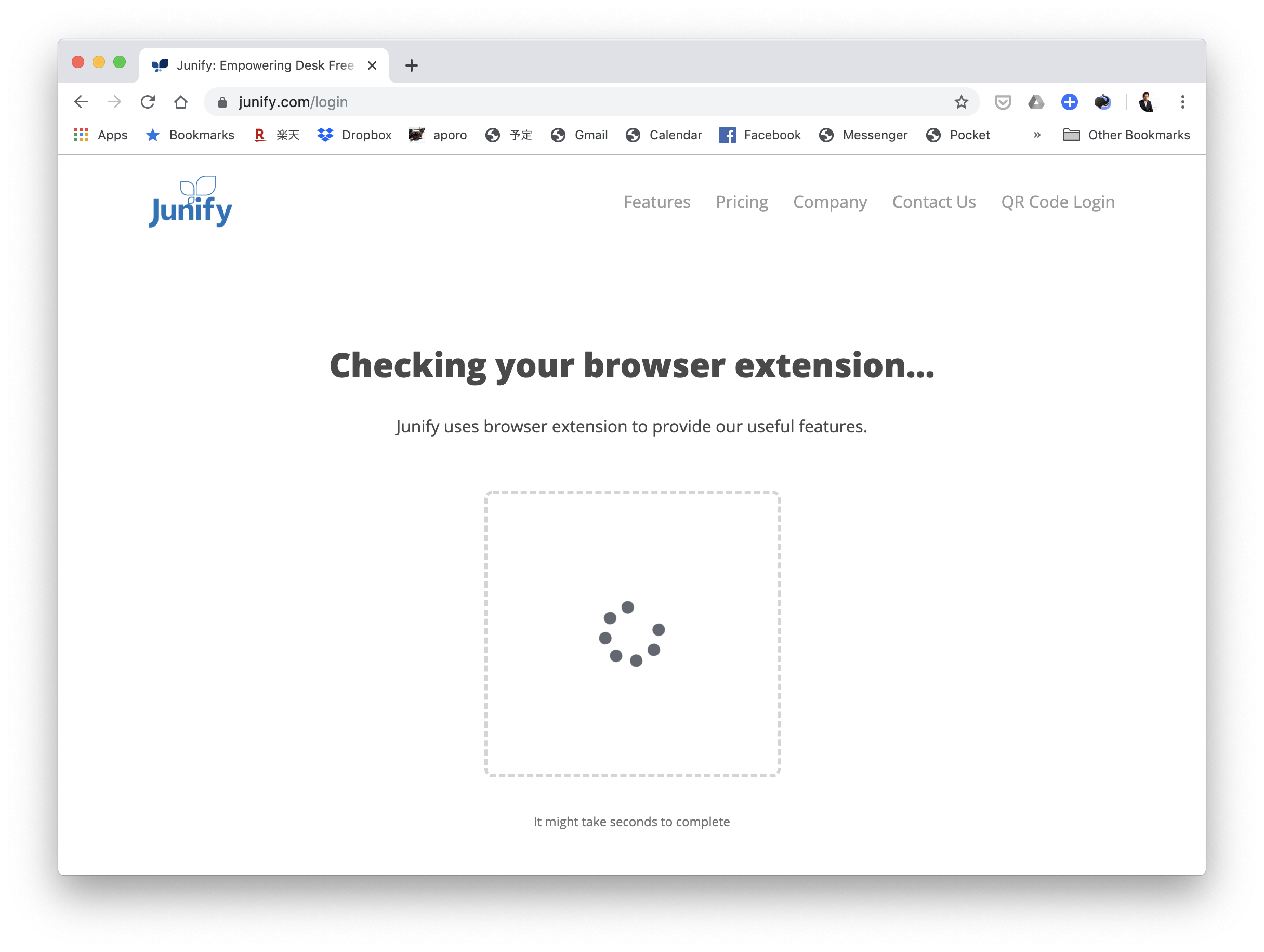
1-2. It takes several seconds for Junify to check whether your Chrome browser as the proper Junify extension.
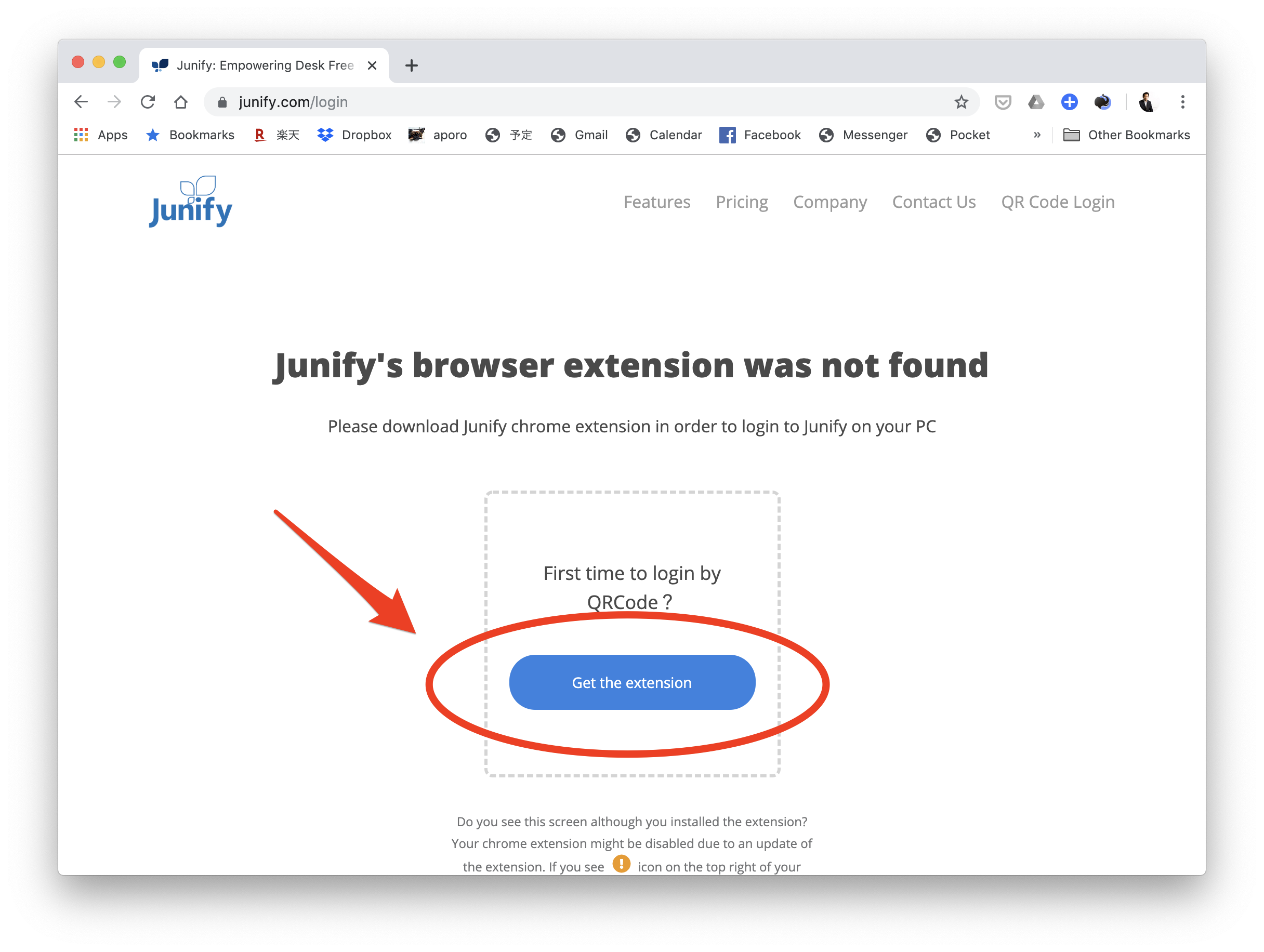
1-3. If you do not already have the Junify extension installed in Chrome you will see a message similar to what is shown below. If you see a QR code, skip to section 1-9. If you see the message below, click on "Get the extension" to start the configuration process.
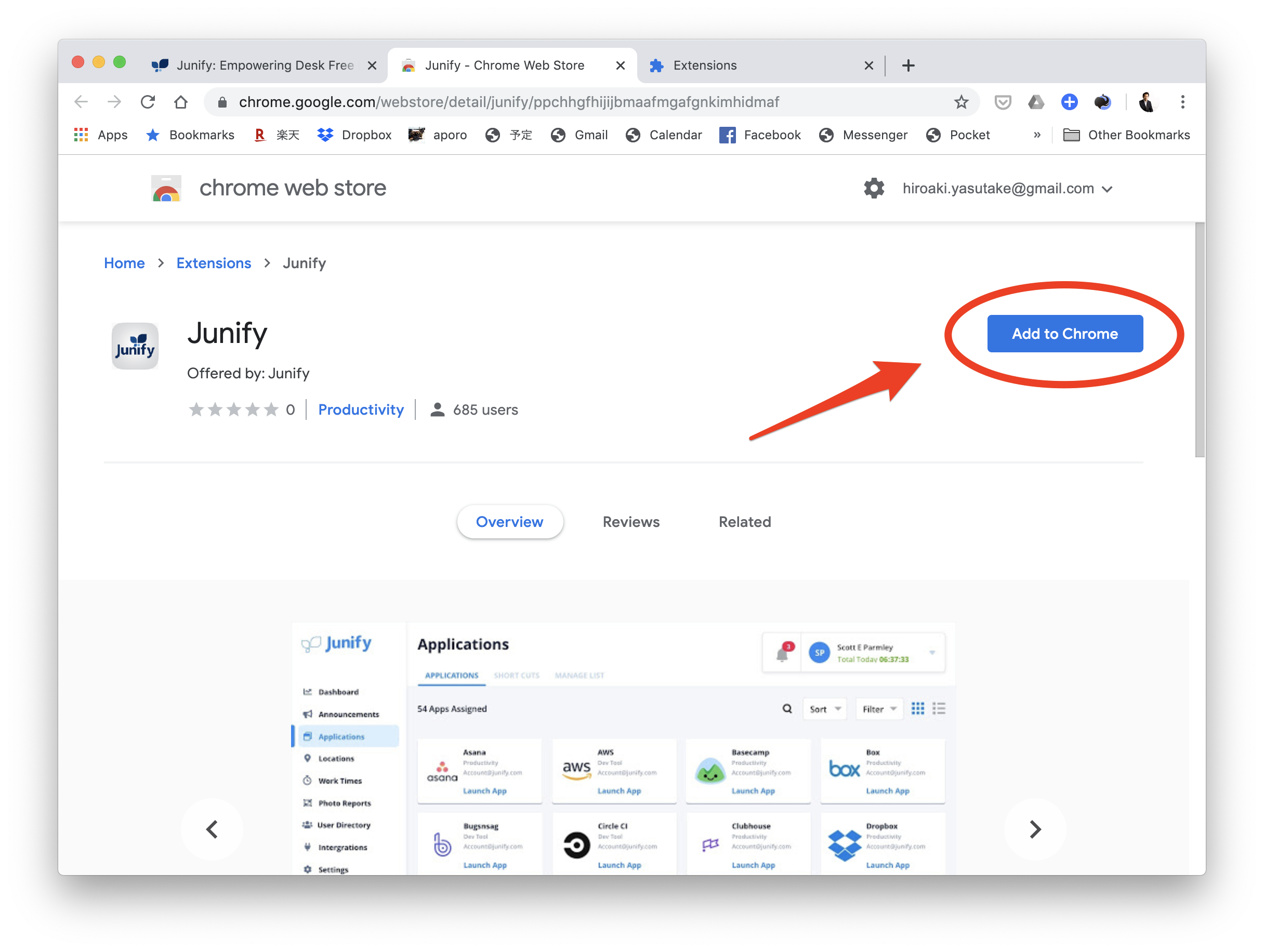
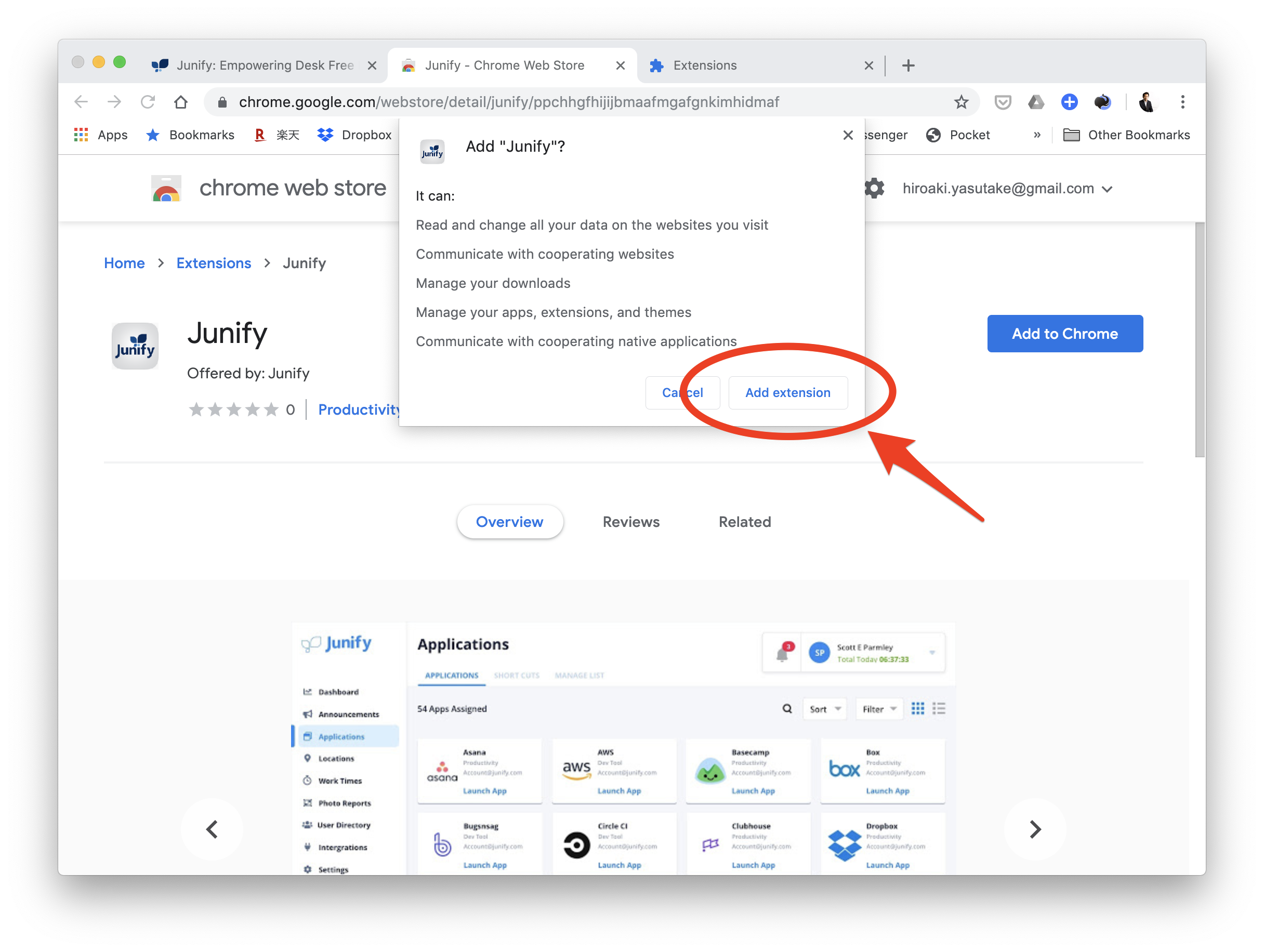
1-4. Click "Add to Chrome" button at the chrome web store.
1-5. Click "Add extension".
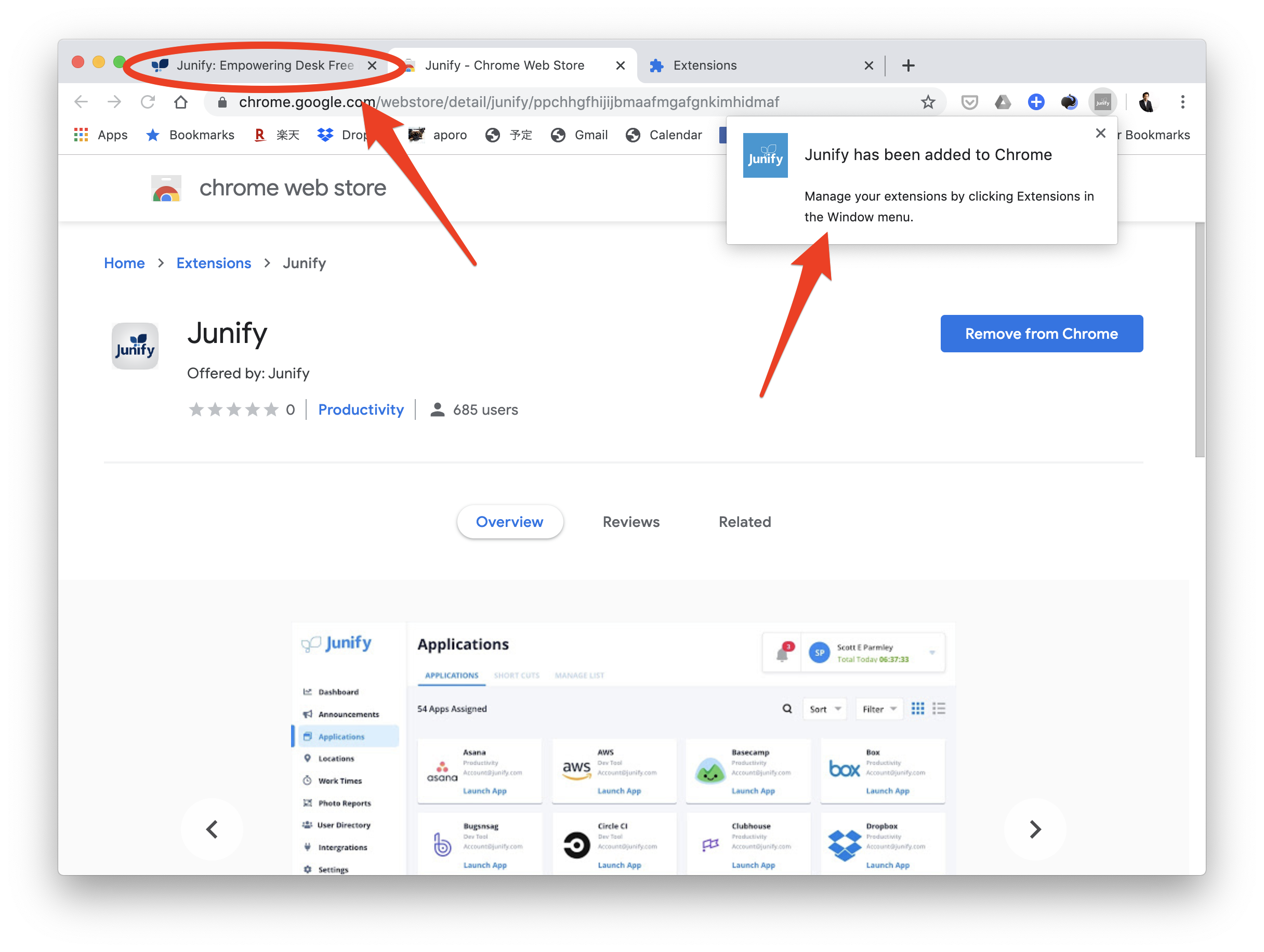
1-6. Success! Please go back to the original Junify tab.
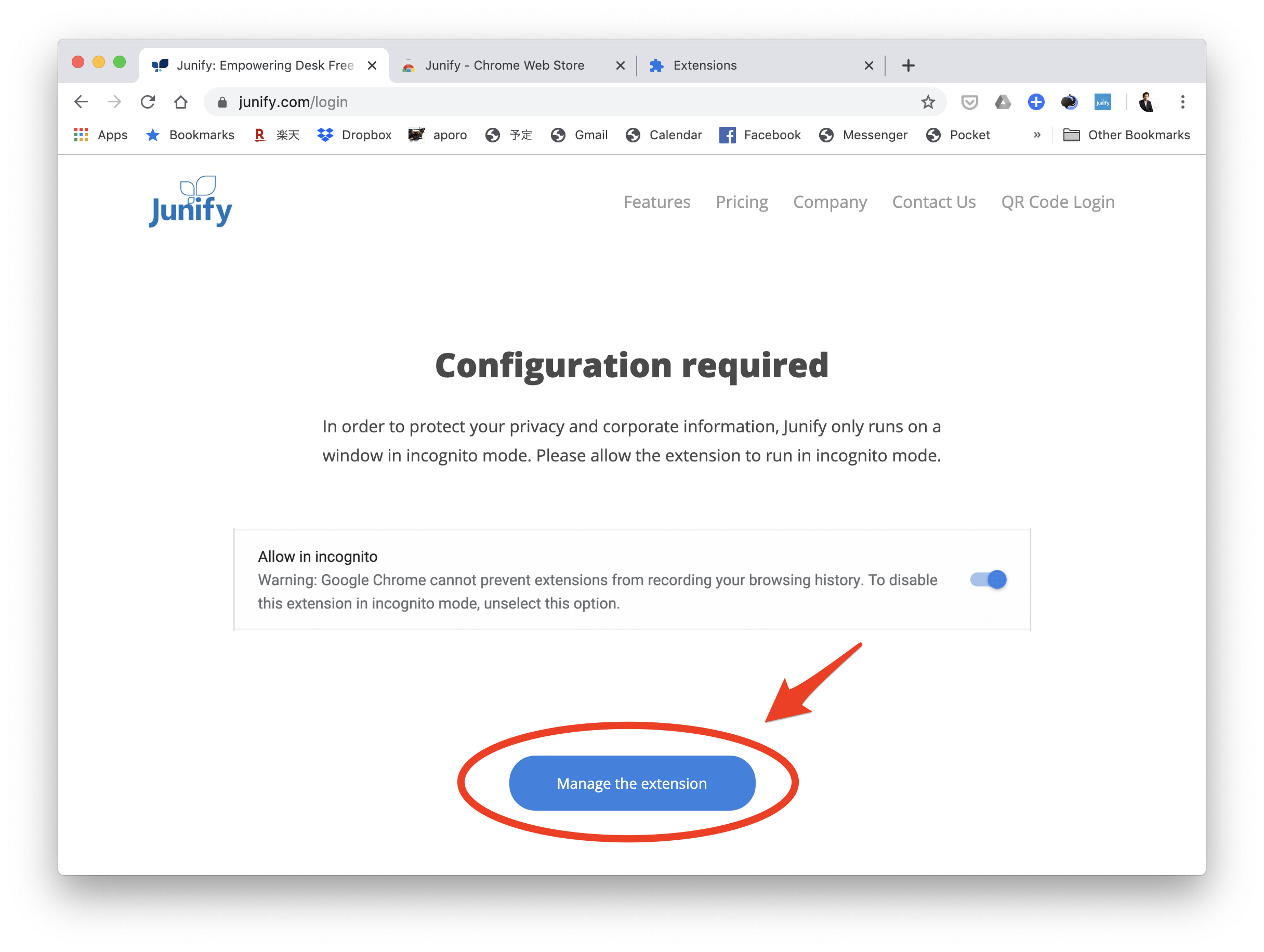
1-7. Junify Chrome extension requires the permission to run in incognito mode. Click "Manage the extension" button.
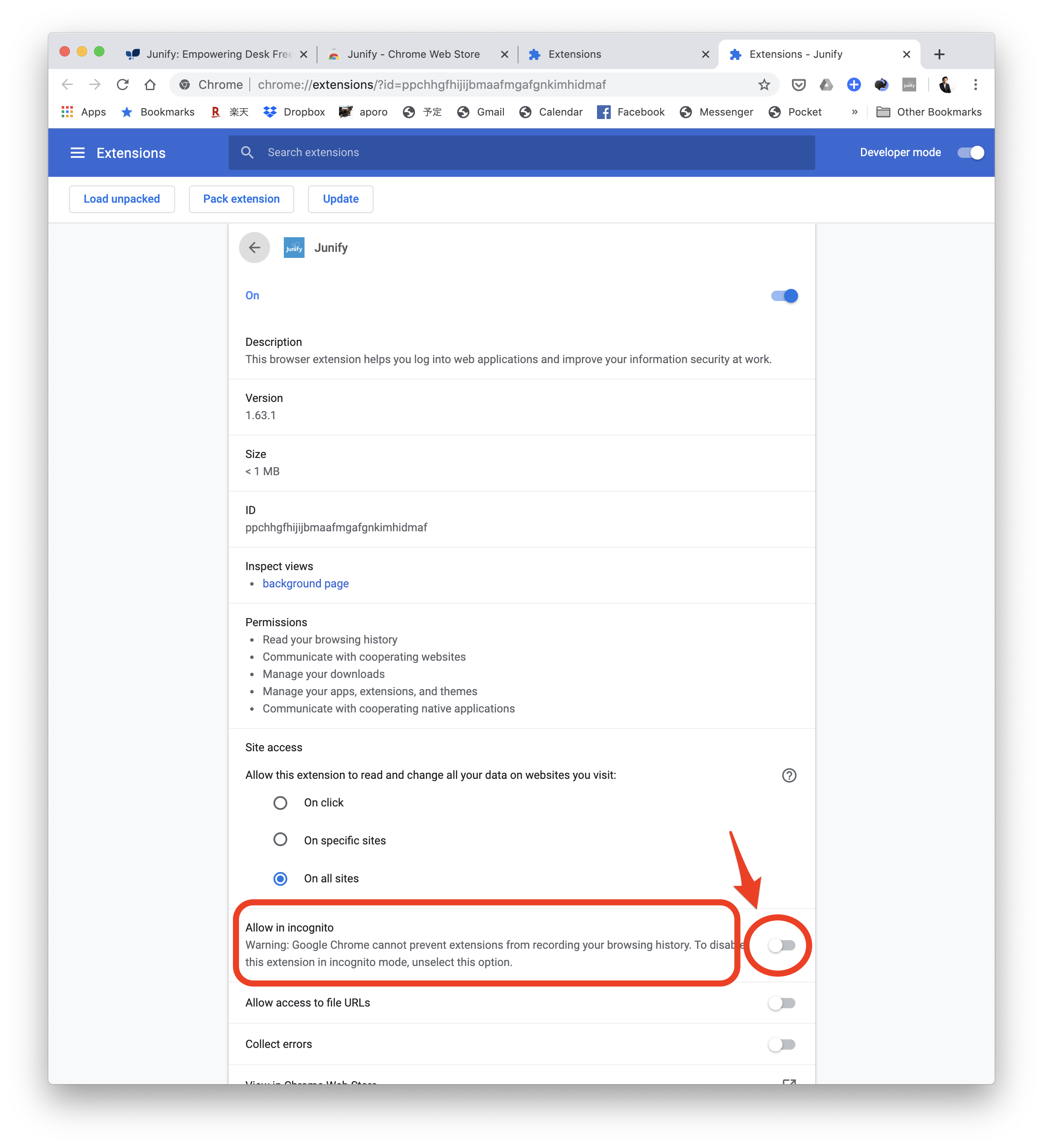
1-8. Turn the switch on at the "Allow in incognito" section.
1-9. You should now see a QR code when you go back to https://www.junify.com/login. All set! You're ready to start using Junify on your PC.
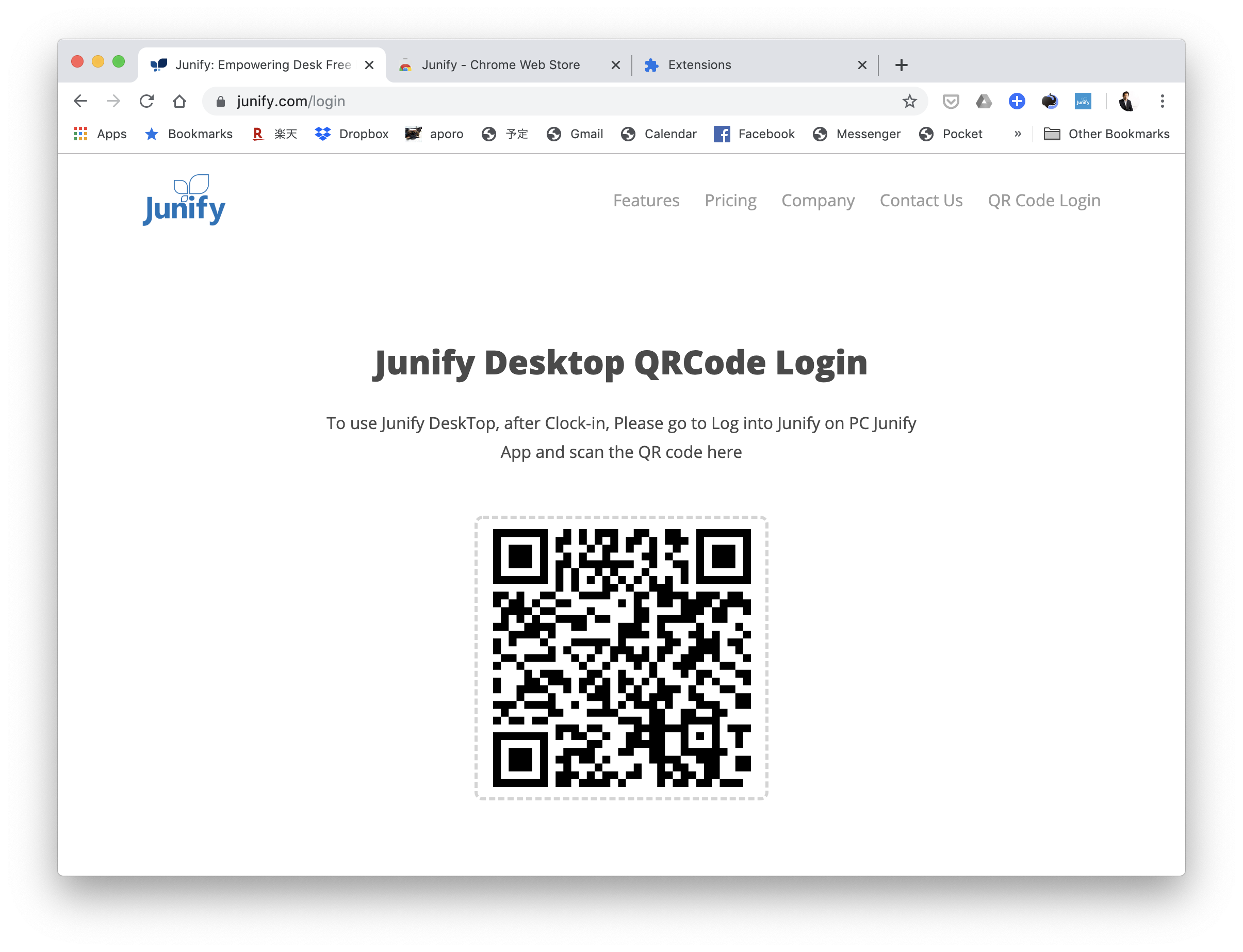
2. Log into Junify on your PC
Go to https://www.junify.com/login on your Chrome browser and open your Junify app on your smartphone.
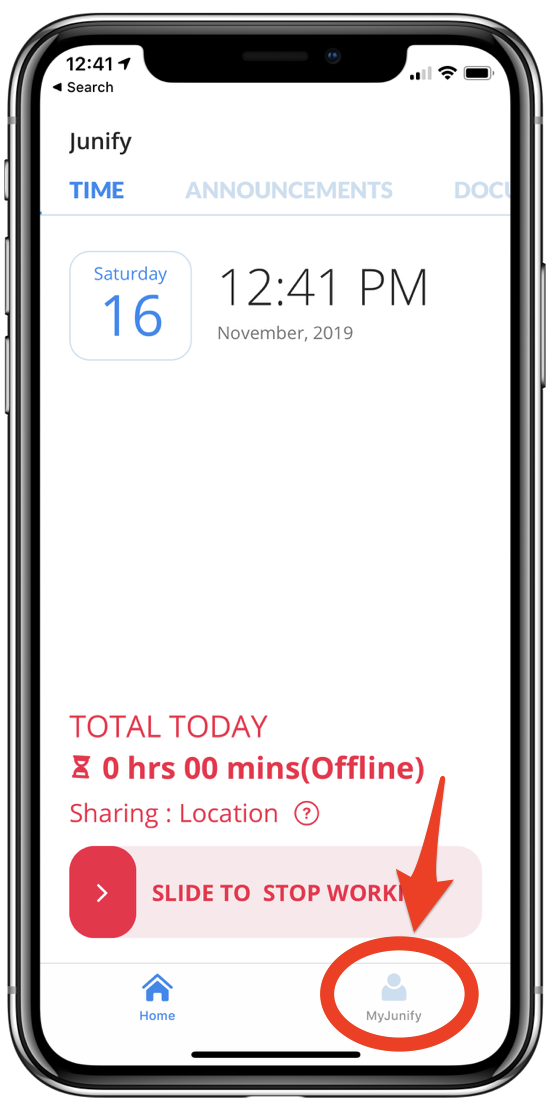
2-1 Tap "My Junify" at the right bottom. Note that depending on your organization's policy, you may need to clock in first to access the My Junify section.
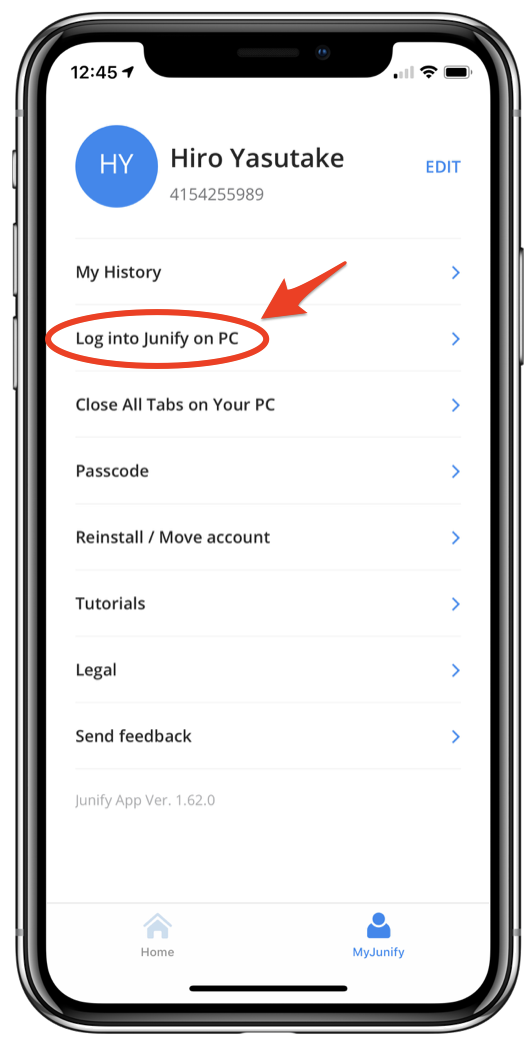
2-2. Tap "Log into Junify on PC".
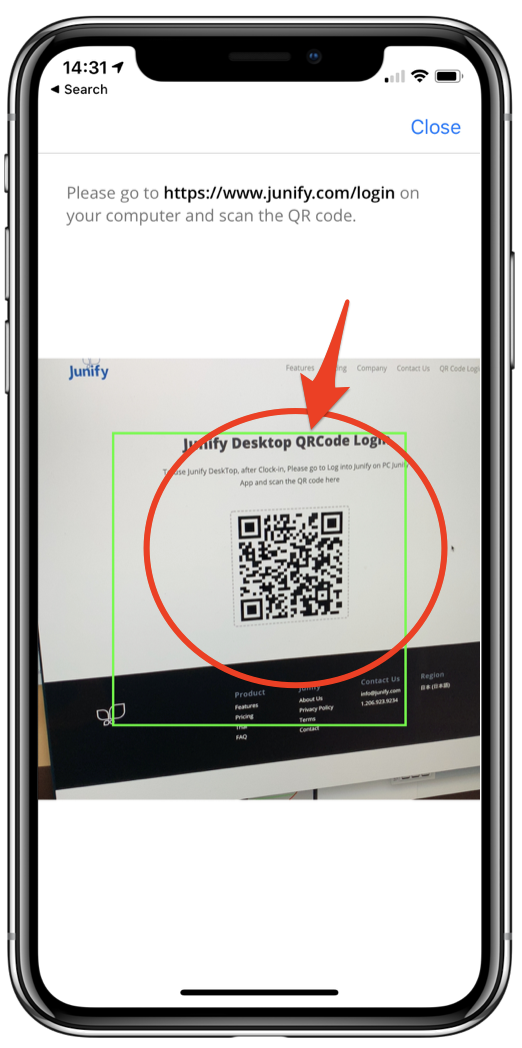
2-3. Shoot the QR code on "https://www.junify.com/login" by the camera window on Junify app.

2-4. A new browser window in incognito mode will open. The browser is forced into this mode so that Junify can prevent passwords from being saved by the browser and so that login credentials can be passed through to various sites.