The following takes you through the desktop version of Junify.
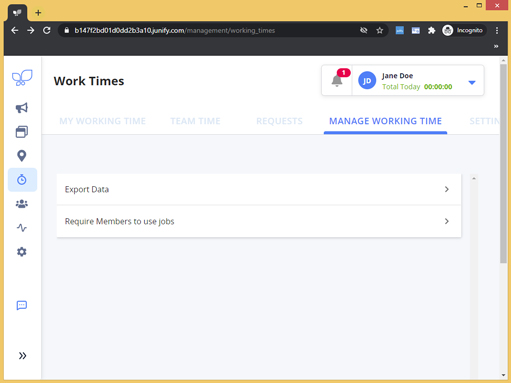
Log into Junify on your desktop, click on the Work Time icon  in the left navigation menu. Then MANAGE WORKING TIME tab in the Work Times window.
|
Don't see this option? Only administrators (user role: Owner/Manager) will have access to the Work Times Management features. |
From the Manage Working Times page, you can:
- Pull time reports for time tracking, project management, and/or payroll
- Add/Require job selection for your Members
To Create a Work Time Report
1. Select your report dates
Go to Work Time > Manage Working Time > Export Data.

Select your Time Period (dates default to current month). Click the start date field to change the date. Select your date using the popup date picker. Click [OK] to make your date selection.
 |
 |
Click the end date field to change the date. Click [OK] to select the end date.
 |
|
2. Selct the data format
Your data export will contain all Members for your Junify account. Current output selections are:
- Working Time Summary - Daily totals and total time
- Raw Data - Daily totals, Detailed Log in/out
- Assigned Job - Daily totals, detailed Log in/outs, assigned job, assigned job daily totals

3. Select your export method
Receive your report as a downloaded csv or have the report emailed to a specific inbox. To send the report to multiple emails, separate each email with a comma. For custom report layouts, please contact support@junify.com for inquiries.
|
Download
|
|

