Business class cloud access security that is easy to use and manage, with a platform that connects office or remote workers to their resources. In this tutorial, we will cover setting up your Junify account.
1. Install and Launch the Junify App
Install the Junify app on your smartphone by visiting the App store or Google Play store from the following link.
 |
 |
2. Select "Set Up a New Team"
Launch your app > click LET US GET STARTED > select "Set Up a New Team" > click NEXT to continue.
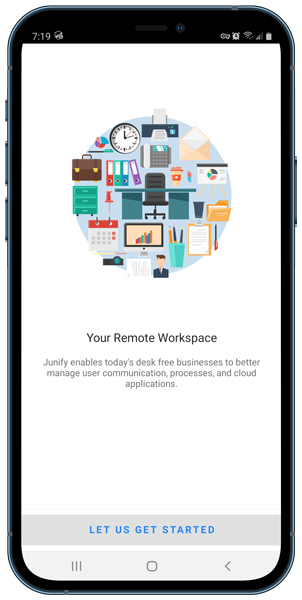 |
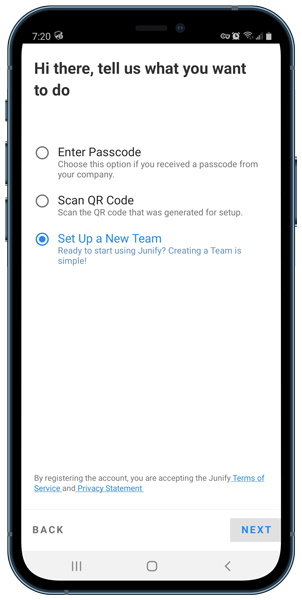 |
Follow the prompts to enter company information and verify your email.
You will receive an authentication code from noreply@junify.com. If you do not receive the authentication email within a few minutes of signing up, please check your spam/junk mail folder. If so, select the email and click Not Spam/Junk, to allow future messages to get through.
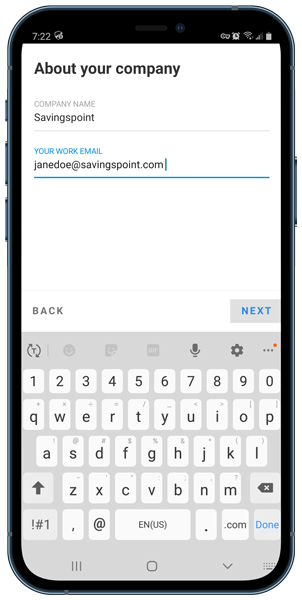 |
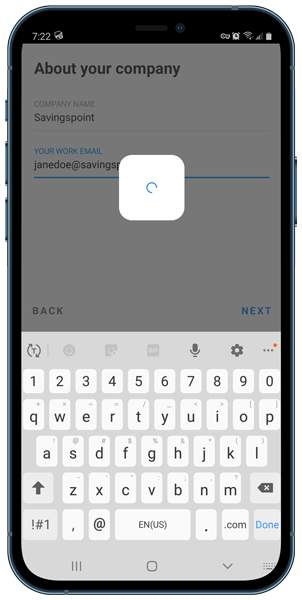 |
CHECK YOUR EMAIL
|
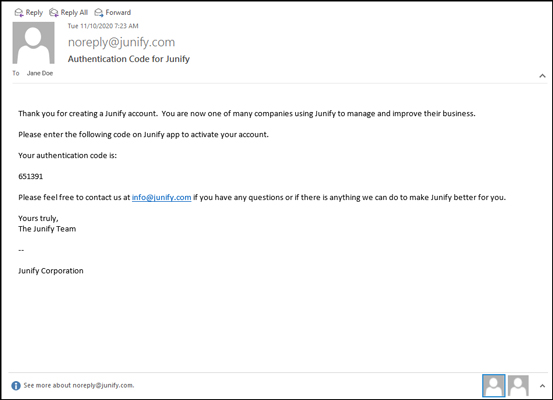
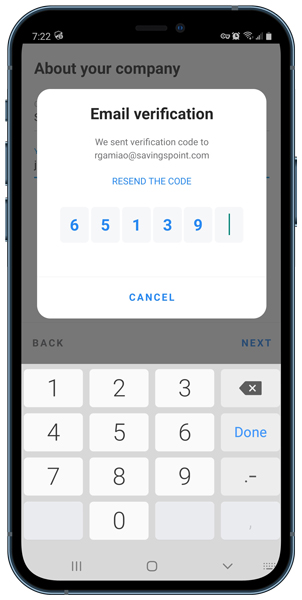
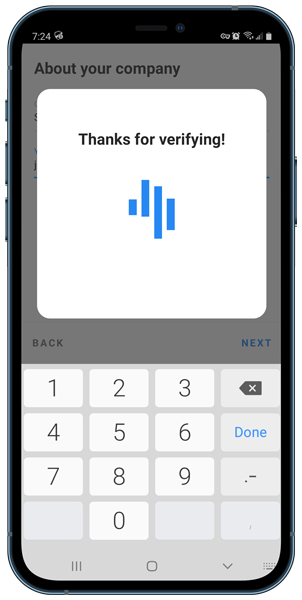
Enter the code received into your app
 |
 |
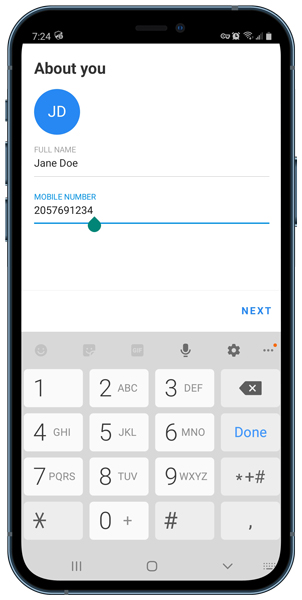
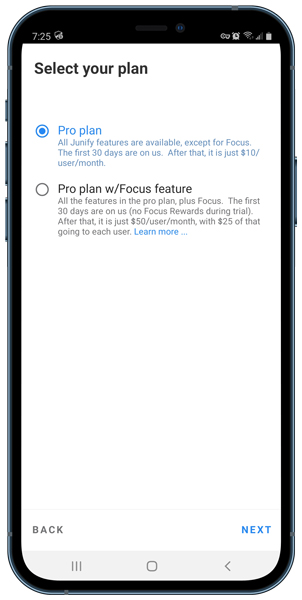
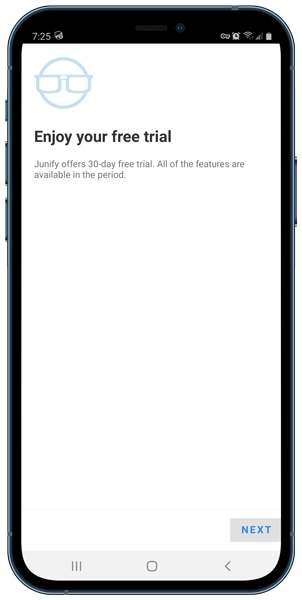
Enter your account information > Select a plan
 |
 |
 |
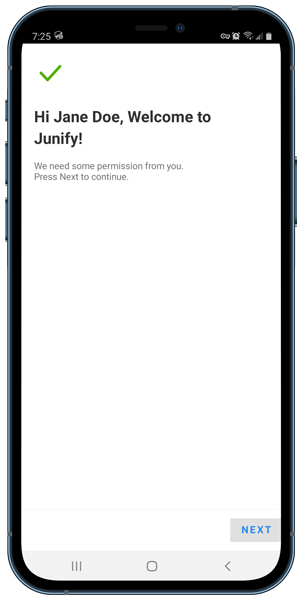
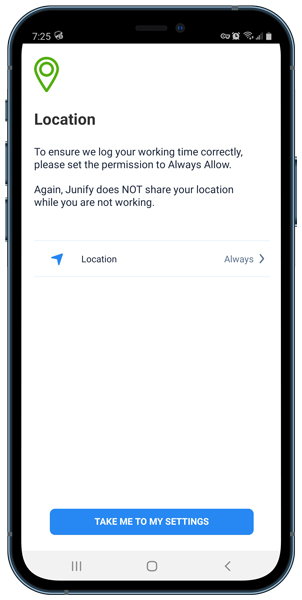
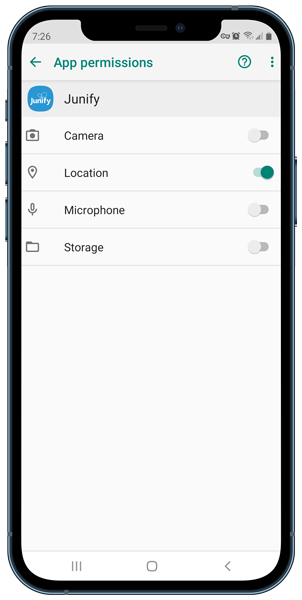
Enable app permissions
 |
 |
 |
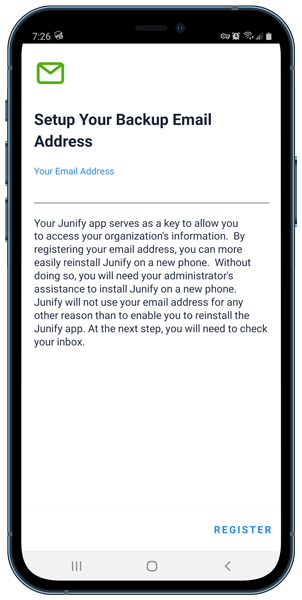
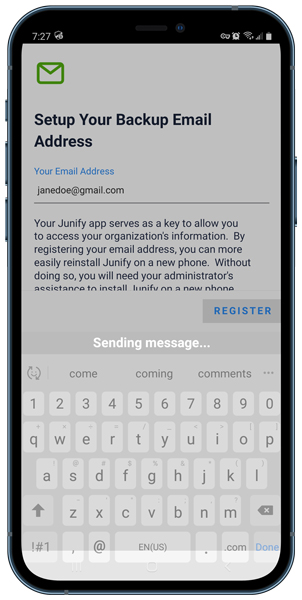
Setup your backup email address.
 |
 |
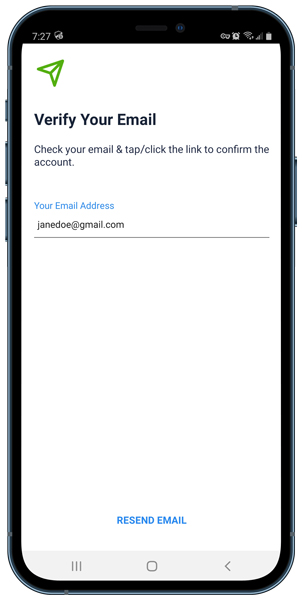 |
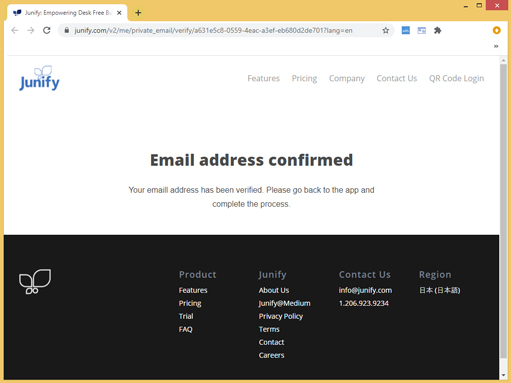
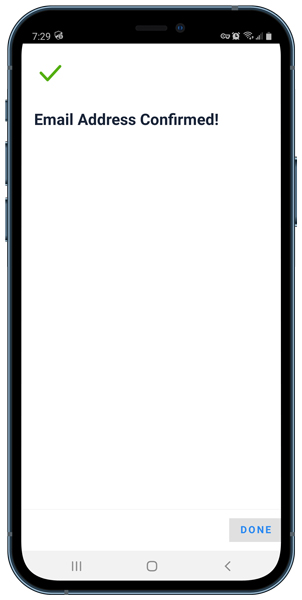
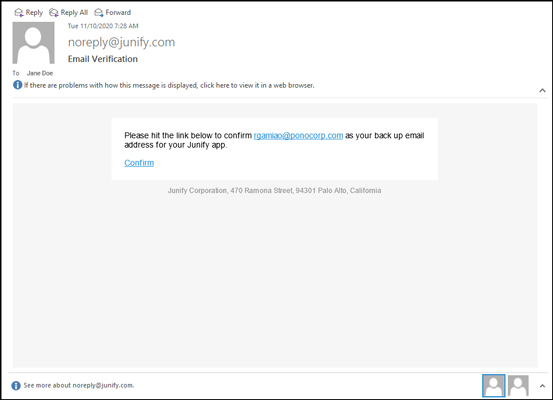
You will receive an email verification link to validate the email address. A recovery email address allows you to install Junify on a new phone if:
- You purchased a new phone
- You are unable to use our phone due to loss or damage
- You’re locked out of your phone for another reason
|
CHECK YOUR EMAIL
Click the link |
 |
 |
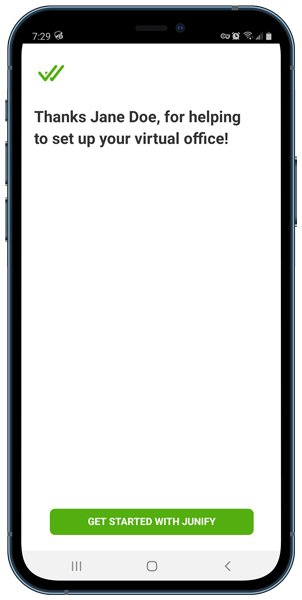
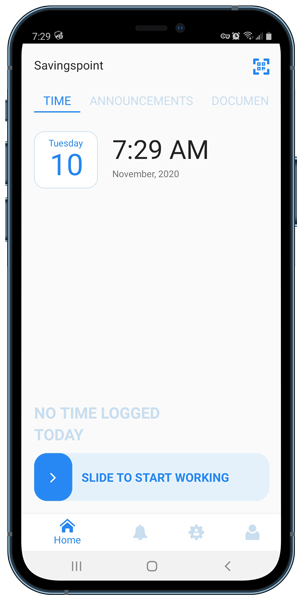
3. Congratulations, you're set up!
Start using Junify by adding application cards and/or your team members.
 |
 |