With Location, you can set a perimeter (geofence) of your team’s work so you can be sure all projects are on track. It allows Managers to automatically monitor the activities of their team when employees are out in the field and logged in.
By default this feature is enabled at account startup. To disable this feature visit Settings > Organization to toggle off Locations.
The following will take you through a general overview of the PC browser version of Junify.
Locations
To access Locations, click on the Location icon  in your left navigation menu. The default page shows the logged in Member's location and status. Member location is only recorded when enabled and Member is logged in.
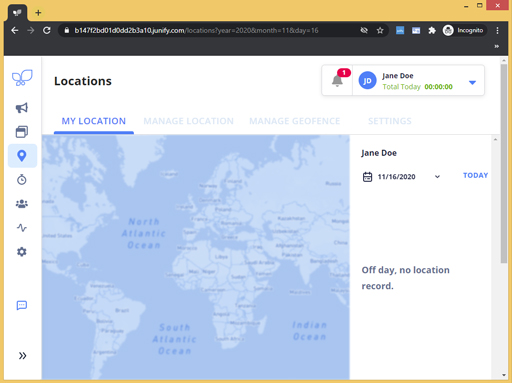
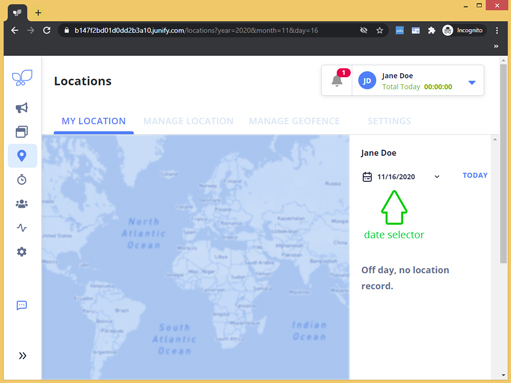
My Location
Offers you a historical view of your location by date selection. Default will display current date
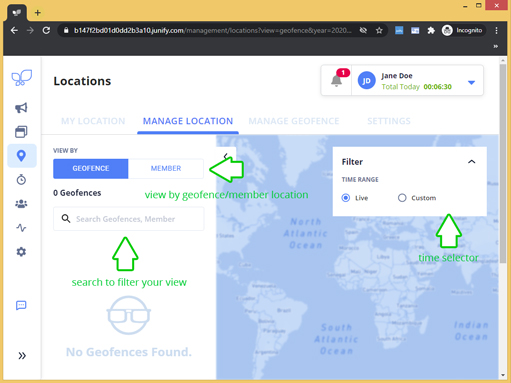
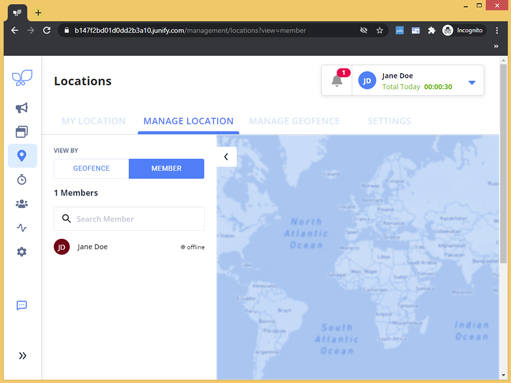
Manage Location
Diplays a map view of you all logged in Members and or selected Geofences.
 |
 |
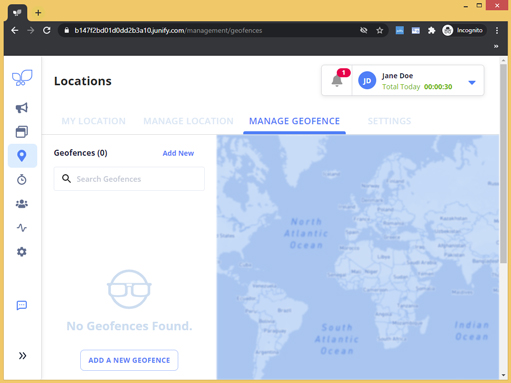
Manage Geofence
Create/Edit/Delete Geofences
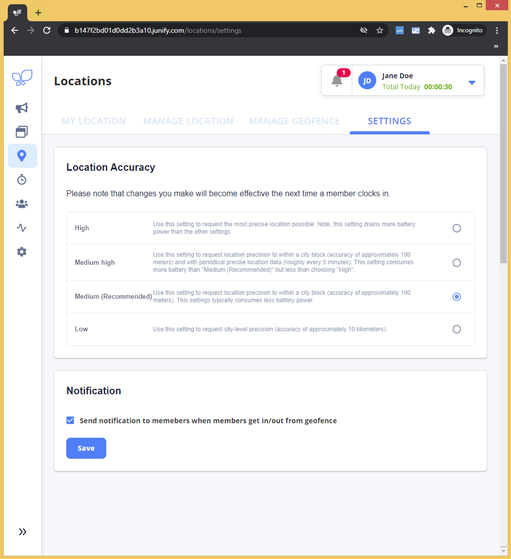
Settings
Adjust Location (GPS) sensitivity and/or enable notifactions to Members when thye enter/exit a geofence