The Work Time feature allows Members to login, perform timeclock operations, and view hours via a calendar view on thier smartphones. This is useful in cases where Members may be working on/off-site without access to a web-based timeclock and/or conventional clock device.
Junify allows managers to manage work time through Junify and does not require a 3rd party application. Spend less time tracking and more time growing with this feature.
By default this feature is enabled at account startup. To disable this feature visit Settings > Organization to toggle off Working Time.
The following will take you through a general overview of the PC browser version of Junify.
My Working Time
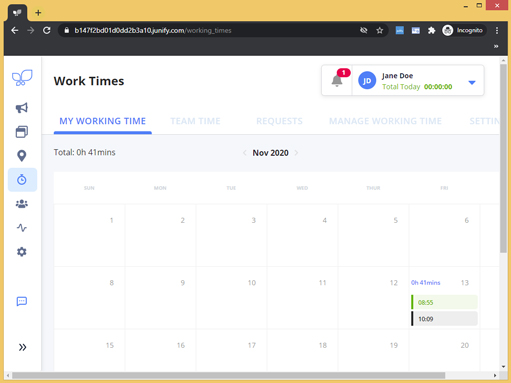
To access Work Time, click on the Work Time icon  in your left navigation menu. The default page shows the logged in Member's working time as a calendar view. Timezone is automatically detected from the device's timezone.
Team Time
Clicking on the "Team Time" tab (visible to Managers/Supervisors) displays all members, thier current status, and time logged.
|
Tip: Use the filter groups or search fields to narrow your view of Members. |
Clicking on a Member's name will display the Member's time as a calendar view.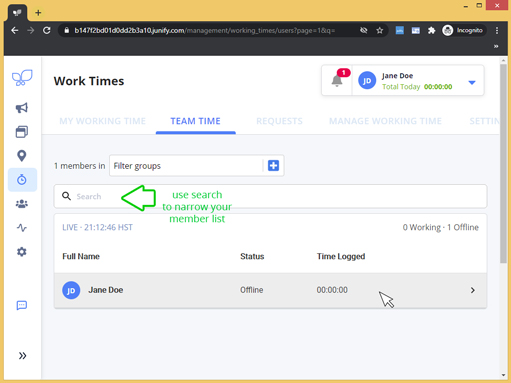
Requests
The "Request" tab displays time request edits that your members have submitted for approval. This is useful in cases where a Member missed a clock in or forgot to clock out on a shift. 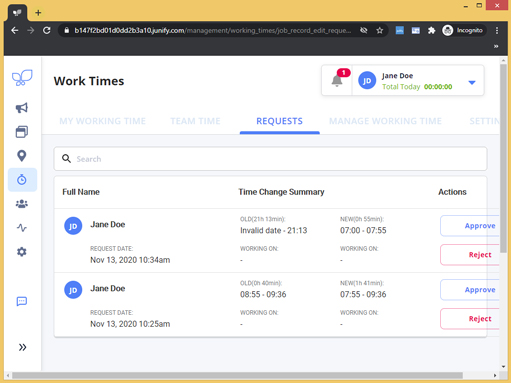
Manage Working Time
The "Manage Working Time" tab allows you to export data and/or require your members to select a job to bill time to.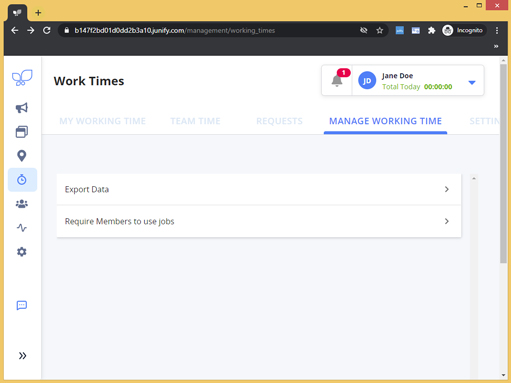
Settings
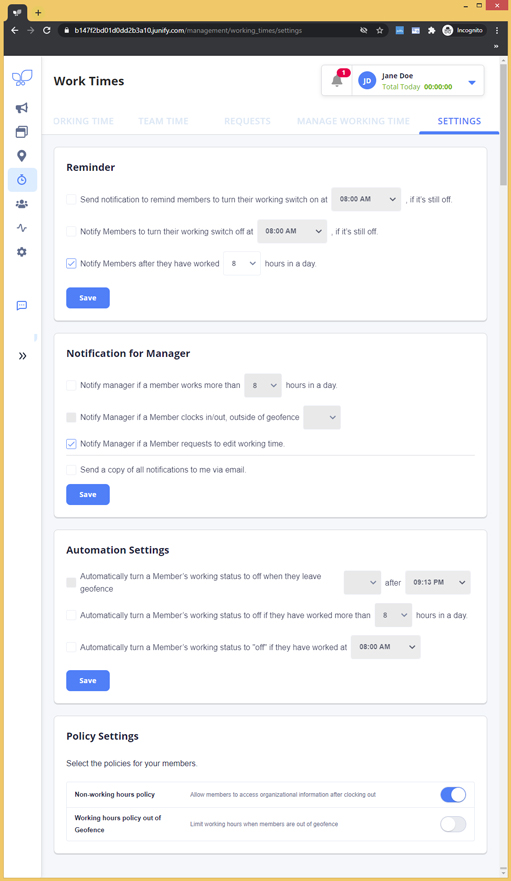
The "Settings" tab offers options for your timeclock such as:
- Reminder notifications to Members
- Reminder notifications to Managers/Supervisors
- Access policy settings based on work time status
- Automation rules to clock a Member out
- Policy settings to restrict access when a Member is clocked out