The following takes you through the PC browser version of Junify. To edit an Application Card using the mobile app [click here].
Log into Junify on your PC browser > Click on the Applications icon  in the left navigation menu > Then MANAGE LIST tab in the Applications window.
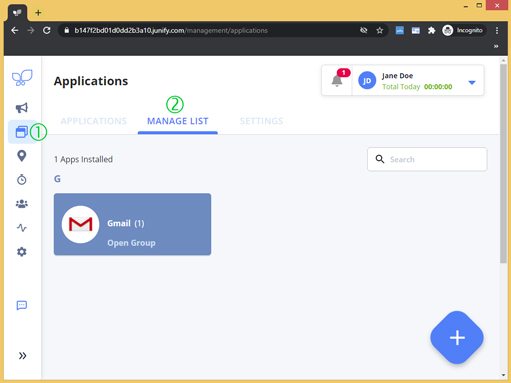
|
Don't see this option? Only administrators (user role: Owner/Manager) will have access to the MANAGE LIST tab. |
From the Applications page, you can:
- Add/Delete/Edit Application Cards
- Add/Remove member access to application cards
To Edit an Application Card:
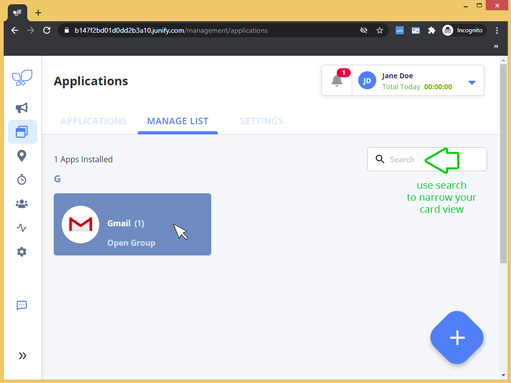
1. Select the application you would like to edit.
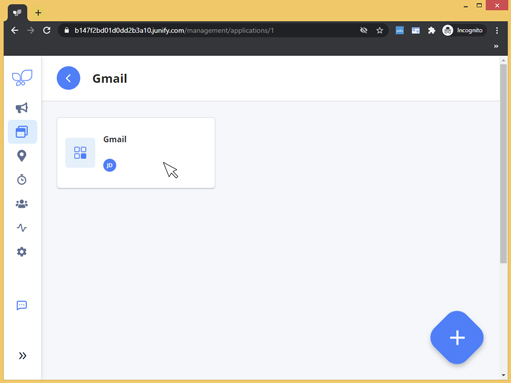
Use the Categories section and/or search filter to narrow your view. Click the card to open the group, click the single card for the account you would like to edit (if multiples are available).
 |
 |
2. Make your edits.
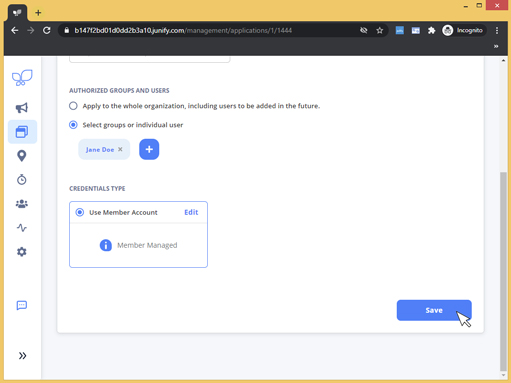
All fields of your application card are editable. You can also remove members from access to the application by clicking on the [x] icon to the right of thier name.
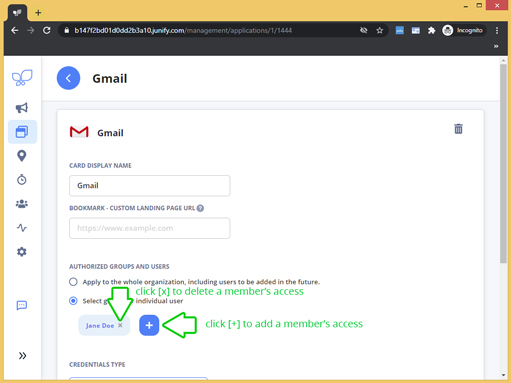
3. Click Save.
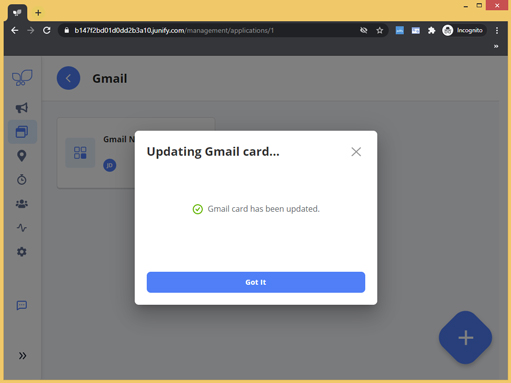
Clicking the [Save] button update the application card for all members you have authorized to access.
 |
 |