The following takes you through the PC browser version of Junify. To edit a Member using the mobile app [click here].
Log into Junify on your PC browser > Click on the User Directory icon  in the left navigation menu.
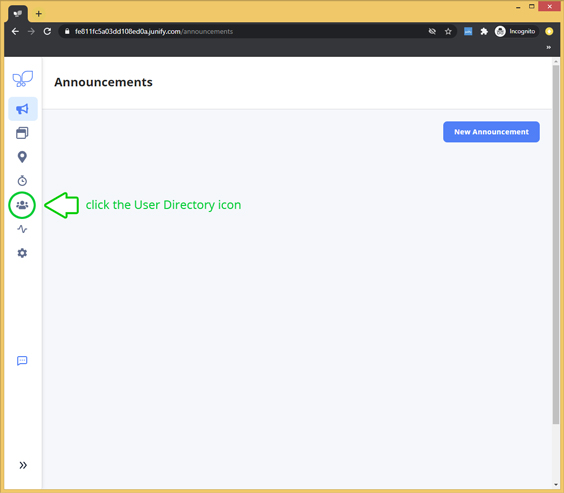
|
Don't see this option? Only administrators (user role: Owner/Manager) will have access to the User Directory page. |
To Update Member information:
1. Select a Member to edit
In your User Directory table view, click on the row of the user you would like to edit.
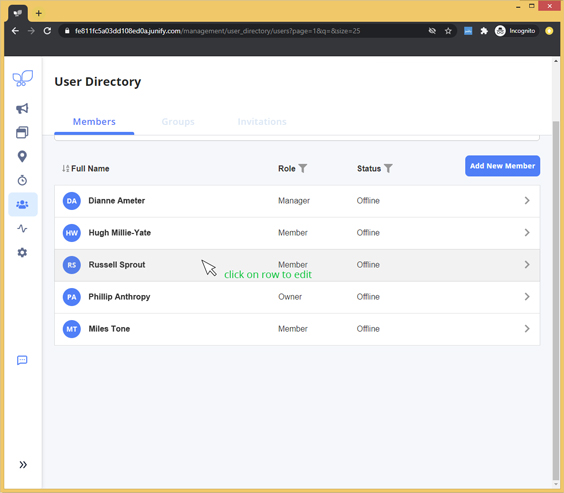
From this User Directory page, you can:
- Update a member's general information
- Assign a member as a Supervisor to a Group (if created)
- Add a member to a Group (if created)
2. Edit Member Info
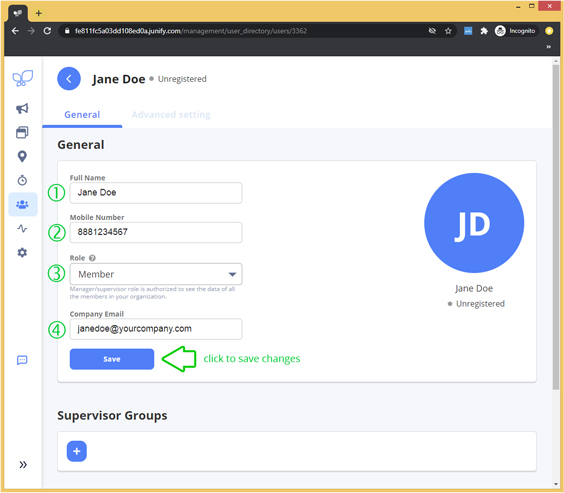
The General section allows you to edit:
- Member's name
- Member's mobile number
- Member's role
- Member (default - general user)
- Manager (administrator to the organization)
- Supervisor (administrator to a group of members)
- Member's email
3. Save Your Edits
Click [Save] to update Member information.