After a manager publishes cards to members, they see them as Application Cards in their application list like this:
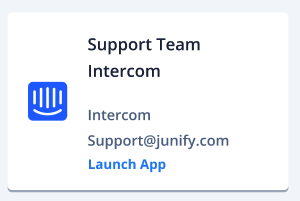
By clicking on the card, Junify launches the application for them and auto-fill the username and the password for the member if the authentication method is configured as Username/Password authentication.
Create a new card
Once you complete the setting for the application profile, you can create a new card by selecting groups or members who are authorized to use the application, and they will receive the card on their application list.
For each Application Card, you can configure the settings below:
General Settings
1. Card Display Name: The name of the Application Card that helps your member recognize it.
2. Bookmark - Custom landing page: This is optional. If you input the URL in the field, after Junify launches the application for your member, we will also redirect them to the assigned page.
Account Type
1. Shared Account: Each authorized user would use the same credentials to login into the application (e.g., marketing SNS account or cloud application master account). The Manager needs to choose a Shared Account from the list or set up a new one.
2. Per User Account: Each one of the authorized users will have their own accounts, either controlled by themself or the company who enters credentials for them. Member will be asked to enter and save their login credentials when they launch the application for the first time, or the company has to input account credentials for them to use.
Note: Once the Application Card is created, the account type cannot be changed.
Authorized Rules
1. Selected groups or individual users: For this option, the Manager needs to choose Group/Member in the following step and configure each account credentials when necessary. The selection will also include members to be added in the future.
2. All Members in the organization: All members in your organization will see this card on their Application List. The selection will also include members to be added in the future.
After all the configurations are done, you can set up members' accounts based on the scenario or company policy and publish them to your authorized members.
Note: The Application Management can only be operated in Junify Webapp. Currently, Junify Mobile App does not support it.